The eBay fee breakdown report
See every eBay fee type by month, in money and as a share of sales, with VAT on fees, in ProfitClerk's Fee breakdown report on the website and in the app.
The Fee breakdown report shows how much eBay took from your sales: every fee type, month by month, in money and as a share of that month's sales. On the website it is under Reports › Fee breakdown; in the app, Money › More reports › eBay fees.
Open the report
- Website: open Reports and press Fee breakdown.
- App: open Money, then under More reports tap eBay fees.
Choose the period with Months (how many) and Ending (the last month), then press Show. In the app, the report starts with the period chosen on the Money tab.
The headline figures
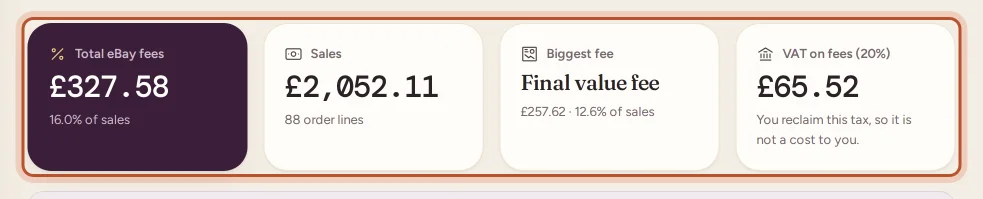
- Total eBay fees: everything eBay charged on your sales in the period, and that total as a share of sales.
- Sales: what buyers paid for those order lines, with the number of order lines.
- Biggest fee: the fee type that cost you most, with its amount and share of sales.
- VAT on fees: when your country charges VAT or GST on eBay fees, how much of it there is, and whether you reclaim it.
Below them, a note says how VAT on fees works for your account, with a Tax profile button for owners. See VAT on eBay fees.
Fees as a share of sales
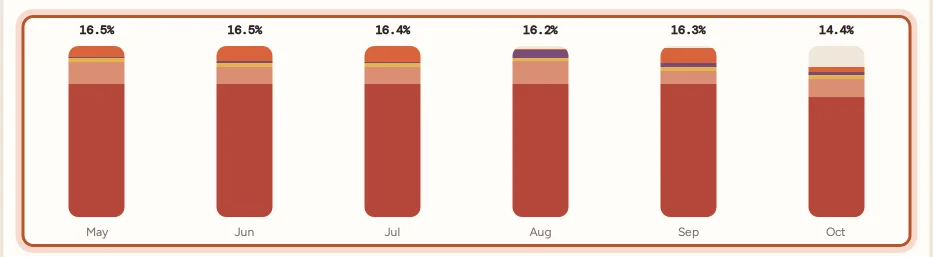
Each bar is one month. Its height is total fees as a percentage of that month's sales, and its colours show which fee types made it up. A month that stands out usually has more international sales, more promoted sales, or a one-off fee.
By fee type
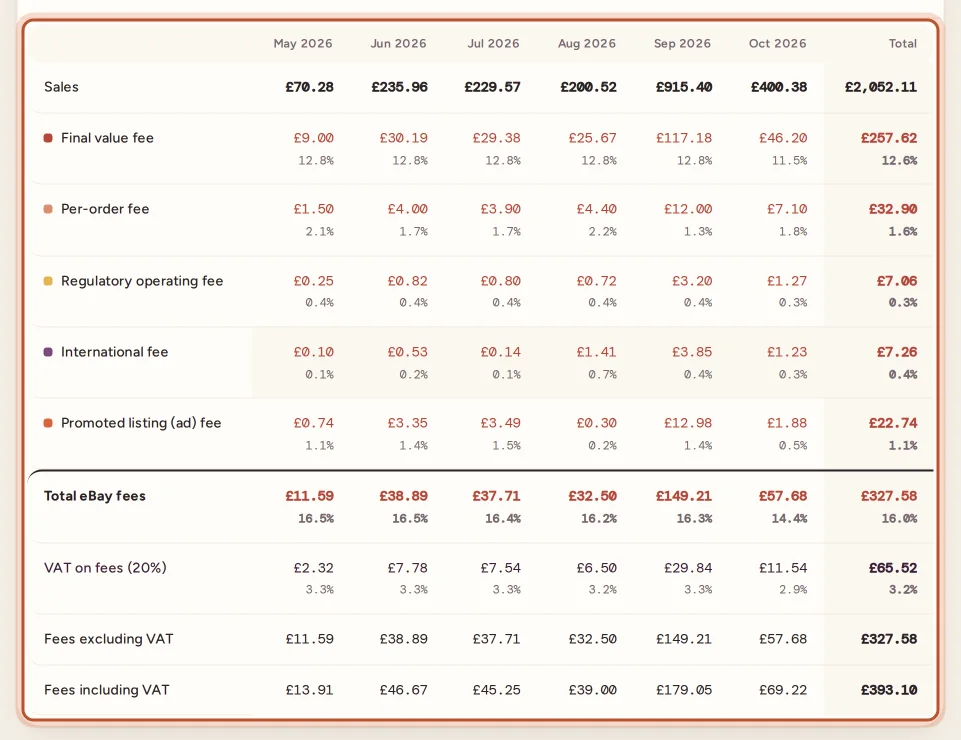
The table has one column per month and a Total column. Each row is a fee type, with the money and, underneath, the share of that month's sales:
- Sales
- Final value fee
- Per-order fee
- Regulatory operating fee
- International fee
- Promoted listing (ad) fee (Promoted Listings General)
- Charity donation
- Other eBay fees
- Not split by type yet, only when some fees still need splitting
- Total eBay fees
When VAT on fees applies, the table adds the VAT row, Fees excluding VAT and Fees including VAT.
What each fee is: see Every eBay fee explained.
Export
Press Export CSV for a file with one row per month and line (Month, Line, Amount, % of Sales), plus the totals. It is handy for a spreadsheet or your accountant.
How to use it
- Watch the total share of sales. If it creeps up, look at which row moved.
- Check Promoted Listings. If the ad fee is a big part of your fees, see whether the ads pay for themselves in the Promoted Listings report.
- Look at Other eBay fees. These are often avoidable, such as fees for below-standard performance. Open an order and check its eBay finance entries to see what a fee was.
- Compare with your profit. The fee report shows fees only. For the full picture with item costs, postage and expenses, open Reports › Profit and loss.
What is not in it
- eBay Labels postage: it is your label cost, not a fee.
- Shop subscription and listing fees: they belong to no order. See eBay shop subscription and account fees.
- Priority and Offsite ads: billed to listings, so they are in the Promoted Listings report.
Questions people ask
Which sales does the report count?
Order lines sold in the months you pick, by sale date. A fee credit or refund on one of those orders changes its fees, so past months can move a little.
Is my shop subscription in this report?
No. The report covers fees on orders. Charges that belong to no order, like the shop subscription, are under Expenses and in your profit and loss.
Why is there no VAT row?
VAT on fees shows only when your home country in Settings › Country and tax profile charges VAT or GST on eBay fees.
Can I export the report?
Yes. Export CSV gives each month's sales, every fee type, the total and VAT on fees, with each as a share of sales.
Are Promoted Listings Priority and Offsite ads included?
No, only Promoted Listings General fees, which are charged on orders. All ad spend is in the Promoted Listings report.
Thanks for telling us.