The free eBay fee and deal calculators
Work out eBay fees, profit, your break-even price, the price for a target margin and the most you can pay for stock, with ProfitClerk's free calculators.
ProfitClerk has two calculators for working out eBay fees before you sell. The free eBay fee calculator on the website, under Free tools, needs no account. The deal calculator inside ProfitClerk adds a price for your target and the most you can pay for stock, and can use the fees eBay really charged you.
Both work before a sale, from eBay's published rates. The fees on your real orders always come from eBay itself; see How ProfitClerk gets your real eBay fees.
The free eBay fee calculator
Open Free tools on the website (the address is /tools) and choose the fee calculator for your eBay site, for example eBay UK. In the app, open More › Free calculators.
- Under The sale, enter the Sold price (the item price, without postage) and the Postage the buyer pays.
- Under Your costs, enter What the item cost you, the Postage label cost, Packaging and any Other costs.
- Under eBay, choose You sell as (private or business), the Category and your Seller level. Add your Promoted Listings ad rate if the item is promoted, and tick Buyer is abroad (international fee) if it applies. On sites with sales tax, enter the Sales tax the buyer pays.
- Where VAT applies, tick I am registered for VAT and choose your Scheme.
- Optionally, set a Target margin.
The result updates as you type:
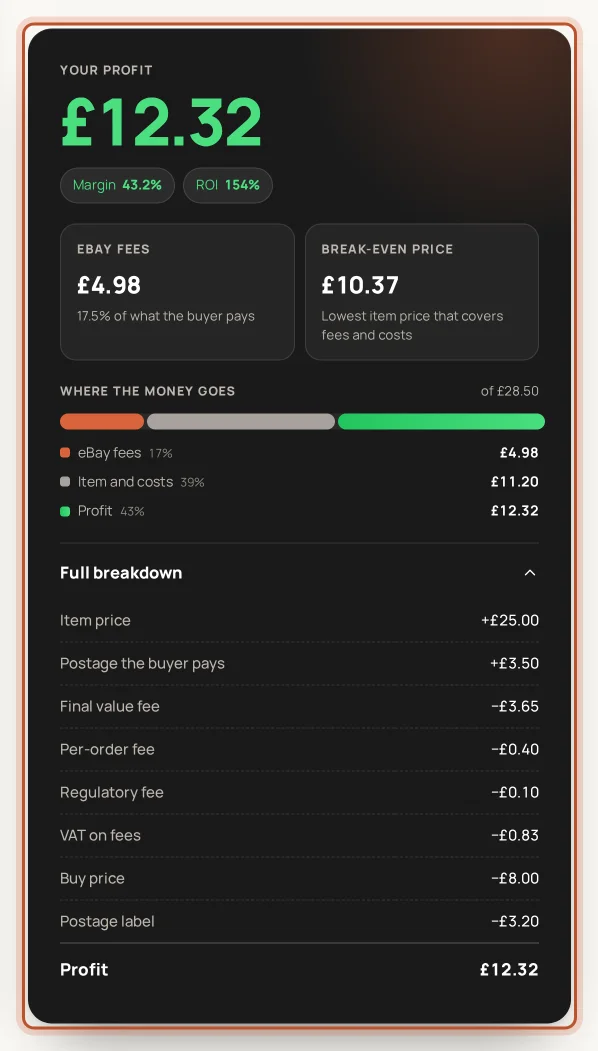
- Your profit, with Margin and ROI.
- eBay fees, and their share of what the buyer pays.
- Break-even price.
- Where the money goes: fees, item and costs, tax and profit.
- Full breakdown, line by line.
Below it, How fees work on that site lists the rates the calculator used. The address bar keeps your numbers, so you can bookmark or share a result. Other free calculators (margin, reselling profit, job lots, VAT and more) are on the same Free tools page.
The deal calculator
On the website, open Deal calculator in the main menu. In the app, open More › Deal calculator, or tap Check a price in quick add.
Fill it in
- The item: Buy price (per item), Your sale price (optional), Postage the buyer pays, Postage label cost, Packaging and Other costs.
- eBay fees: eBay site, You sell as, Category, Seller level, Promoted Listings ad rate, and Buyer is abroad if it applies. On sites with VAT, tick I reclaim the VAT on eBay's fees if that applies to you, and optionally include the VAT you owe on the sale for your scheme.
- Your target: aim for a Profit, a Margin % or an ROI %, and enter the Target.
Category: published rates or your own
- A category: eBay's published fees for that site and category.
- My own fees (from my recent sales): the final value, per-order, regulatory and other fees eBay really charged you, as a share of your recent sales, plus what Promoted Listings cost you. It appears once you have enough recent sales with eBay fees.
- Enter my own rates: type the rates yourself.
What you get
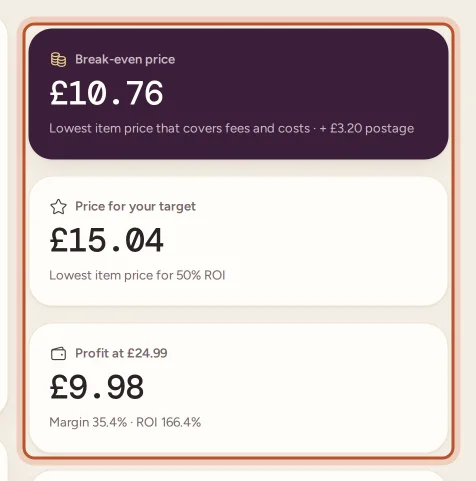
- Break-even price: the lowest item price that covers fees and costs, plus the postage the buyer pays.
- Price for your target: the lowest item price that reaches your target. Not reachable means fees and costs take more than any price can bring in.
- Profit at your sale price, when you entered one.
- Most you can pay: the highest buy price that still breaks even, or reaches your target, at your sale price.
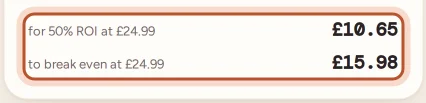
- Breakdown at your price: item price, postage, each eBay fee, VAT on fees, your costs, profit, margin and ROI.
Keeping the rates right
eBay changes its fees from time to time. The calculators say when the published rates were last checked and link to eBay fee page so you can compare. Rates are never written into your real orders: those always use what eBay charged.
Questions people ask
Is the eBay fee calculator free?
Yes. The calculators under /tools on the website are free and need no account. The deal calculator inside ProfitClerk is there for every signed-in user.
How accurate are the calculators?
They use eBay's published rates for the site and category you choose. Your real fees can differ with shop subscriptions, promotions and eBay's own changes, so check eBay's fee page before you rely on a figure.
What is the break-even price?
The lowest item price that covers eBay's fees, the item's cost, postage and packaging, so you make no loss. Anything above it is profit.
Can the deal calculator use my own fees?
Yes. Choose My own fees (from my recent sales) as the category. It uses the fees eBay really charged you on your recent sales, once you have enough of them.
What is the difference between margin and ROI?
Margin is profit as a share of what the buyer pays for item and postage. ROI is profit as a share of what you paid for the item.
Thanks for telling us.