Set your country, currency and tax profile
Choose your home country, reporting currency, tax year, VAT or GST set-up and eBay account type, so every ProfitClerk report and export fits where you live.
Your country and tax profile tells ProfitClerk where you live and how you report: your home country, the currency for every amount, when your tax year starts, whether you are registered for VAT or GST, your accounting basis, and whether your eBay account is personal or business. Every report, export and the tax centre use it.
Set it once when you start, and change it if your situation changes, for example when you register for VAT.
Where to find it
- On the website: Settings, Workspace & eBay tab, the Country and tax profile card.
- In the app: More › Country and tax.
Only the workspace Owner can change it. Managers and viewers see a summary.
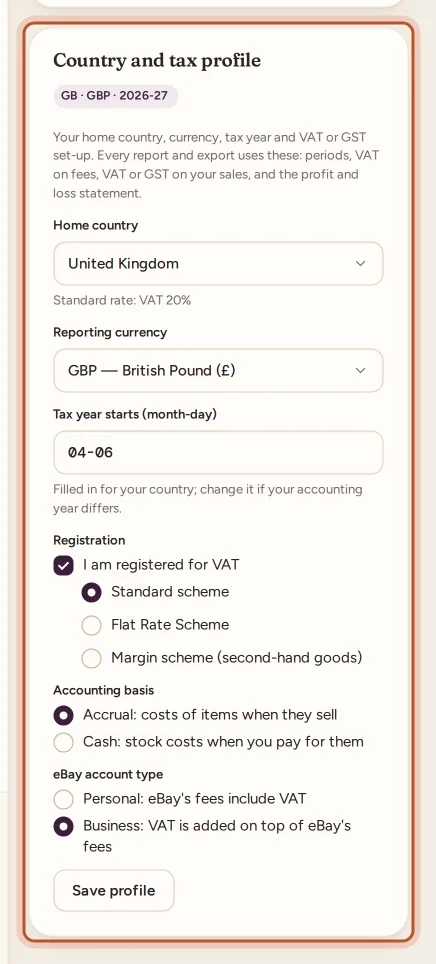
Fill it in
- Home country: choose the country your business is based in. Your choice fills in the tax year start and shows which sales tax applies there (VAT or GST). If your country is not listed, choose Somewhere else (no VAT or GST figures).
- Reporting currency: the currency ProfitClerk shows every amount in. Choose the currency eBay pays you in.
- Tax year starts (month-day): filled in for your country, written as month and day (for example 04-06 for 6 April). Change it if your accounting year starts on a different date.
- Registration: tick I am registered for VAT (or GST) if you are. Then choose your scheme:
- Standard scheme
- Flat Rate Scheme, with Your flat rate as a percentage, where your country offers it
- Margin scheme (second-hand goods), where your country offers it
- Accounting basis:
- Accrual: costs of items when they sell
- Cash: stock costs when you pay for them
- eBay account type (only where VAT or GST applies):
- Personal: eBay's fees include VAT
- Business: VAT is added on top of eBay's fees
- Select Save profile. You see "Country and tax profile saved."
In the app the same fields appear one under another: Home country, Reporting currency, Tax year starts (month-day), a Registered for switch, Scheme, Accounting basis and eBay account type, then Save profile.
What each setting changes
| Setting | What it changes in ProfitClerk |
|---|---|
| Home country | The tax centre's forms, thresholds and deadlines, mileage rates, and which tax options you see |
| Reporting currency | How every amount is shown, on screen and in exports |
| Tax year start | "This tax year" and "Last tax year" in reports, and the tax year on exports |
| VAT or GST registration and scheme | The VAT or GST on your sales and fees in reports and the profit and loss |
| Accounting basis | When stock counts as a cost in the profit and loss: when it sells (accrual) or when you pay (cash) |
| eBay account type | Whether the VAT on eBay's fees is already inside the fee or added on top |
Your profit per sale on the Overview and order pages stays the same whichever basis you choose: the basis changes the profit and loss statement and tax figures. See Profit and loss.
Good to know
- ProfitClerk never hard-codes a rate or a date. Country rules are kept up to date by the ProfitClerk team, and the tax centre shows when a country's rules were last checked.
- If you link Xero, QuickBooks Online or FreeAgent, you can keep this profile in step with your accounting software: registration, basis and flat rate are read from it every day.
- Reports and exports use the new profile as soon as you save it. Saving never changes anything on eBay.
- The badge at the top of the card sums up your profile, for example your country, currency and current tax year.
Next steps
Back to the first-day set-up checklist, or see how VAT on fees works in eBay fees explained.
Questions people ask
Which currency should I choose?
Choose the currency eBay pays you in, usually that of the eBay site you mainly sell on. ProfitClerk shows every amount, report and export in it.
My country is not in the list. What should I pick?
Pick Somewhere else. Reports and profit work normally, but ProfitClerk leaves out VAT and GST figures, because it has no rules for your country.
Should I choose personal or business for my eBay account?
Pick the type your eBay account really is. On a personal account eBay's fees already include VAT; on a business account VAT is added on top, which changes what ProfitClerk shows as VAT on fees.
What is the difference between cash and accrual?
With accrual, an item's cost counts when it sells. With cash, stock counts when you pay for it. Ask your accountant which one you should use; ProfitClerk does not give tax advice.
Why can I not change the profile?
Only the workspace owner can change it, and the workspace needs an active plan. Managers and viewers see a summary of the settings instead of the form.
Thanks for telling us.