Your profit and loss statement, line by line
Read ProfitClerk's profit and loss for eBay sellers: net sales, every cost line, cash or accrual basis, tax year periods and a CSV export for your return.
The Profit and loss is your statement for a period: what you sold, less refunds and any tax you owe on sales, less every cost, down to your Net profit. It follows your accounting basis and VAT or GST set-up, and opens on the current tax year.
On the website, go to Reports › Profit and loss. In the app, open the Money tab: the statement is on the first screen, under the net profit.
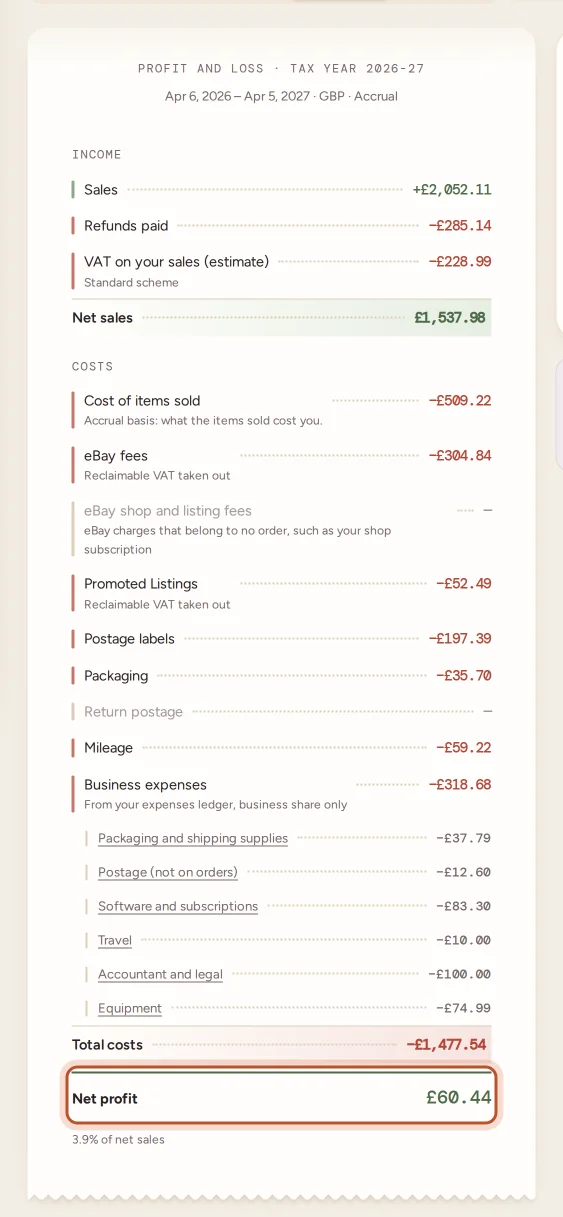
Income
- Sales: what buyers paid for the items sold in the period, including the postage they paid.
- Refunds paid: refunds paid out in the period, whenever the sale was.
- VAT on your sales (estimate) or GST on your sales (estimate): shown only if you are registered. It is worked out by your scheme, which is named under the line: the tax inside sales to buyers in your home country on the standard scheme, your flat percentage of sales on the Flat Rate Scheme, or the tax inside your margins on the margin scheme.
- Sales tax you collected (owed): tax you charged buyers yourself, which you owe to the tax authority. It only appears when there is some.
- Net sales: sales less all of the above.
Tax that eBay collected from buyers and paid itself, such as US sales tax or VAT on imports, is not part of your sales. See Sales tax collected by eBay.
Costs
Every cost line is listed, even when it is zero, so you can see nothing is missing:
- Cost of items sold (accrual basis) or Stock bought (cash basis). See below.
- Stock written off: stock you wrote off as damaged, lost or donated in the period (accrual basis). See Write off damaged, lost or donated stock.
- eBay fees: the fees on your orders. If you reclaim VAT or GST, it is taken out; if you cannot reclaim it, it is included. The note under the line says which.
- eBay shop and listing fees: eBay charges that belong to no order, such as your shop subscription.
- Promoted Listings: ad fees on orders and ads billed to a listing.
- Postage labels and Packaging on your orders.
- Return postage you paid for buyers' returns.
- Mileage: your mileage log at the mileage rate.
- Business expenses: the business share of your expenses, with each category listed underneath. Select a category to open those expenses.
Total costs adds them up and Net profit is net sales less total costs. Under it you see the net profit as a share of net sales.
Cash or accrual basis
Your basis is set in your country and tax profile and shown at the top of the statement and in the footer.
- Accrual: stock is a cost when it sells. The Cost of items sold line is what the items sold in the period cost you.
- Cash: stock is a cost when you pay for it. The Stock bought line is the stock you paid for in the period, whether it has sold or not. Returns put back on the shelf are not counted as stock bought.
The Also in this period card tells you what that line would be on the other basis, so you can compare. Which basis you may use depends on your country's rules: ask an accountant if you are not sure.
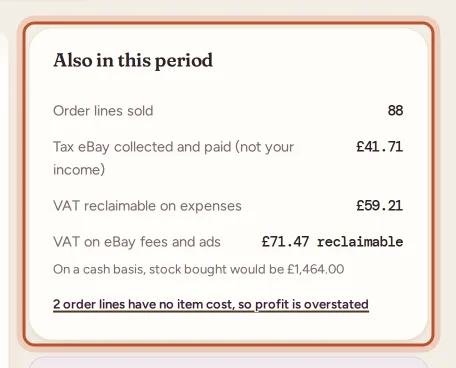
Also in this period
This card holds figures that are useful but are not part of your profit:
- Order lines sold in the period.
- Tax eBay collected and paid (not your income).
- VAT reclaimable on expenses (or GST), when you reclaim it.
- VAT on eBay fees and ads, marked reclaimable or a cost to you.
- Stock taken for own use, at cost: never a business cost, listed so you can tell your accountant. On the cash basis, Stock written off is listed here too, as it was a cost when you bought it.
- A warning when order lines have no item cost, which means profit is overstated. Select it to see those orders and add their costs.
Choose the period
At the top, choose This tax year, Last tax year, 3 months, 6 months or 12 months. For month views you can pick the month it ends on. Your tax year start comes from your country and tax profile. In the app, use the period chips at the top of the Money tab.
Export
Select Export CSV to download the statement for the period. The first row names the period, currency and basis; then each line with its amount, the expense categories, total costs, net profit and the tax eBay collected. In the app, tap the download button on the Profit and loss card; it opens in your browser.
Getting the figures right
- Add item costs to every sale, or profit is overstated.
- Add expenses and trips as they happen, with receipts.
- Keep your country and tax profile up to date, especially VAT or GST registration and scheme.
- For a breakdown by tax form box, deadlines and the amount to set aside, see the tax centre.
Questions people ask
Is the profit and loss the same as my tax return?
No. It is an estimate from your eBay data and stock records to help with your return, not a filed account. Check it with an accountant or your tax authority's guidance before you file.
Why is Net profit different from the profit on my Overview?
The profit and loss also takes off business expenses, mileage, return postage and eBay charges that belong to no order, and your VAT or GST on sales if you are registered. On a cash basis it also counts stock when you pay for it rather than when it sells.
Should I use cash or accrual basis?
That depends on your country's rules and your situation. Choose the basis in your country and tax profile; the statement also tells you what the stock line would be on the other basis. Ask an accountant if you are unsure.
Is the sales tax eBay collected in my sales?
No. Tax eBay collected from buyers and paid itself is never your income. It is shown under Also in this period for reference only.
Can I see last tax year?
Yes. Choose Last tax year at the top of the page, or in the app's period chips on the Money tab.
Thanks for telling us.