Connect Xero, QuickBooks or FreeAgent
Link Xero, QuickBooks Online or FreeAgent to ProfitClerk and post one summary per eBay payout, on your own accounts and tax rates, automatically or by hand.
ProfitClerk can post one summary per eBay payout to Xero, QuickBooks Online or FreeAgent, using your own chart of accounts and tax rates. Each summary splits the payout into sales, refunds, fees, ads, postage and other lines, so the deposit in your bank matches one entry in your books.
On the website, open Accounting in the menu. In the app, go to Money › More reports › Accounting.
Connect
- Open Accounting.
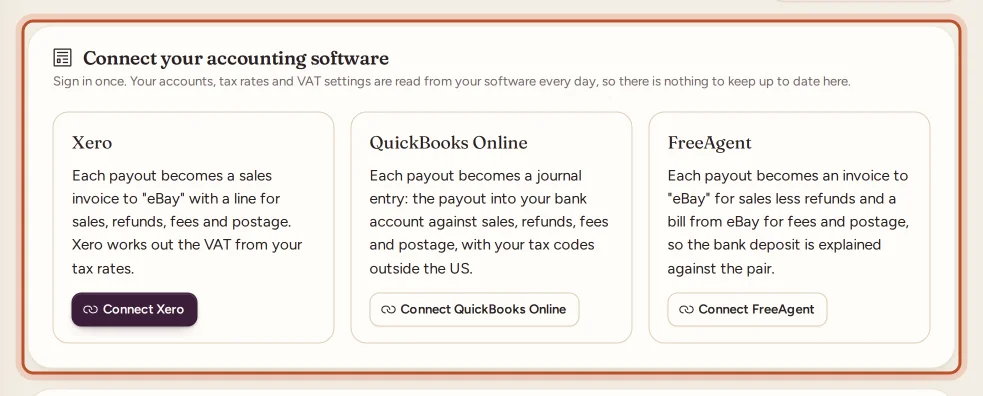
- Under Connect your accounting software, select Connect Xero, Connect QuickBooks Online or Connect FreeAgent.
- Sign in to your accounting software and allow access. In the app, this opens your browser; come back to the app when you have signed in.
- You return to the Accounting page, which says which organisation you connected. Check Where each line goes before the first payout is posted.
Only owners and managers can connect, change settings or disconnect. If the page says Accounting software is not switched on yet, the link has not been set up for this service yet.
What each provider receives
- Xero: each payout becomes a sales invoice to "eBay" with a line for sales, refunds, fees and postage (a credit note when the payout is negative). Xero works out the VAT from your tax rates. You can mark it paid into a bank account.
- QuickBooks Online: each payout becomes a journal entry: the payout into the account your payouts land in, against sales, refunds, fees and postage, with your tax codes outside the US.
- FreeAgent: each payout becomes an invoice to "eBay" for sales less refunds, and a bill from eBay for fees and postage, so the bank deposit is explained against the pair.
Where each line goes
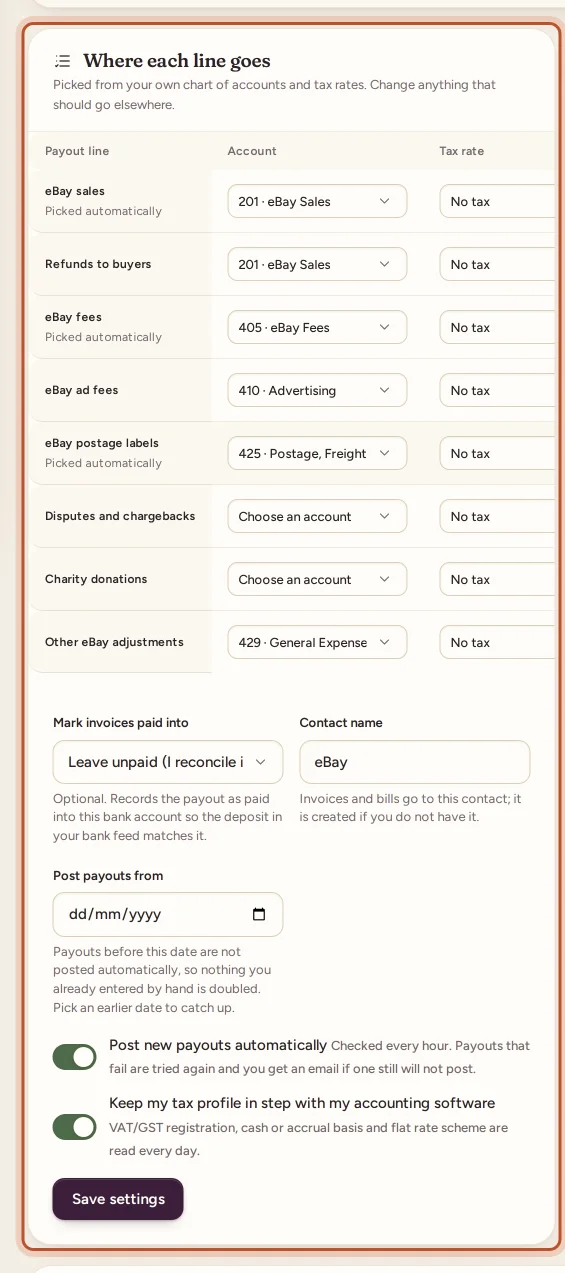
After connecting, ProfitClerk reads your accounts and tax rates and picks an account for each payout line: eBay sales, Refunds to buyers, eBay fees, eBay ad fees, eBay postage labels, Disputes and chargebacks, Charity donations and Other eBay adjustments. Change any that should go elsewhere, and choose a Tax rate for each where your software uses them.
Further settings on the same card:
- Mark invoices paid into (Xero, optional) or Payouts land in (QuickBooks, required): the bank or clearing account eBay pays into.
- Contact name: invoices and bills go to this contact. It is created if you do not have it.
- Post new payouts automatically: on by default.
- Post payouts from: the first payout date to post.
- Keep my tax profile in step with my accounting software.
Select Save settings. Your accounts and tax rates are read again every day; select Refresh now after changing them in your software.
Automatic or by hand
With Post new payouts automatically on, new payouts are checked every hour and each paid payout is posted. With it off, open a payout and select Post now when you are ready.
The In your books column on the payouts list shows where each payout stands:
- Posted, with a link to open it in your software;
- Waiting to be posted;
- Trying again at a set time, after a problem;
- Could not post, with the reason;
- Not posted, when automatic posting is off;
- Before a date, when the payout is earlier than Post payouts from.
If posting fails, ProfitClerk tries again automatically, waiting longer each time. If it still will not post after several tries, you get one email with the reason your software gave. Fix the cause (often a missing account), then open the payout and select Try again.
Before posting, the payout page shows What gets posted: each line with its account, amount, tax and net, and the Tax on sales and Tax on costs. See eBay payouts.
Posting from a date
Post payouts from is set to the day you connect, so payouts you already entered by hand are not doubled. To catch up on earlier payouts, choose an earlier date and save. ProfitClerk can only post payouts it has read from eBay; the first read goes back 90 days.
Your tax profile follows your books
With Keep my tax profile in step with my accounting software on, your VAT or GST registration, cash or accrual basis and flat rate scheme are read from your software every day. The card Tax settings from your provider shows what was read, and your country and tax profile is updated to match, so reports and the tax centre use the same settings as your books.
Reconnect or disconnect
Sign-ins to accounting software expire from time to time. When that happens, the page shows Your … sign-in has expired and you get one email. Select Sign in to … again. Payouts wait until you do; nothing is lost.
To stop, select Disconnect. Summaries already posted stay in your books; new payouts will not be posted.
Questions people ask
Which accounting software can I connect?
Xero, QuickBooks Online and FreeAgent. If the Accounting page says accounting software is not switched on yet, the link has not been set up for this service yet.
Will connecting post my old payouts and double what I entered by hand?
No. Only payouts dated on or after Post payouts from are posted automatically, and that date is the day you connect. Pick an earlier date only if you want to catch up.
Can a payout be posted twice?
No. Each summary carries the payout's reference, and ProfitClerk looks for it in your books before creating anything, so trying again never makes a second copy.
What happens if my sign-in expires?
The page shows Sign in again and you get one email. Payouts wait until you sign in again; nothing is lost.
Does ProfitClerk post each sale separately?
No. It posts one summary per eBay payout, with a line each for sales, refunds, fees, ads, postage and other items, so your bank deposit matches one entry.
Which tax rates are used?
The tax rates in your own accounting software. ProfitClerk never uses fixed rates or account codes for posting.
Thanks for telling us.