The weekly profit email
Every Monday ProfitClerk emails last week's eBay profit against the week before, your best item, sales missing costs and anything unusual. Turn it on or off.
Every Monday ProfitClerk sends the workspace owner a short email with last week's profit, compared with the week before, plus your best item, sales that are missing an item cost and anything unusual. It is a quick way to keep an eye on the business without opening the app.
What is in it
The email covers last week, Monday to Sunday:
- Profit, and how it compares with the week before ("That is … more than the week before").
- Sales, Orders and Margin.
- Best item: the item that made the most profit, and from how many sales. Only sales with an item cost count, so a sale with a missing cost never tops the list.
- Costs missing: how many sales have no item cost, so their profit is overstated, with a link to Add the costs.
- Anything unusual, compared with the four weeks before.
Anything unusual
The email points out things like:
- an eBay account that has not synced for a while, with a reminder to reconnect it in Settings;
- no sales last week, when you usually sell;
- profit well below or well above your usual week;
- eBay fees taking a noticeably bigger share of sales than usual;
- refunds that came to a large share of sales;
- sales that made a loss, naming the biggest;
- eBay Labels charges waiting for you in Shipping › Label charges to check.
- Fee credits and labels eBay may owe you, in Reports › eBay may owe you. See eBay may owe you.
If nothing stood out, it says so.
Who gets it
The email goes to the workspace owner when:
- the workspace is on a running monthly or yearly plan, including a plan given by an admin, or one that is cancelled but still has time left;
- the email is turned on (it is on by default);
- there is an eBay account connected, or at least one sale in the last five weeks.
It is not sent on the Try pass, once a plan has expired or ended, or to a suspended workspace. Managers and viewers do not receive it.
Turn it on or off
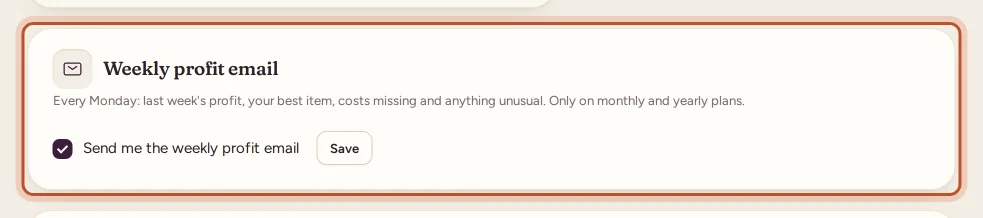
On the website:
- Go to Settings › Weekly profit email.
- Tick or untick Send me the weekly profit email.
- Select Save.
In the app, go to More › Notifications and use the Weekly profit email switch under Emails.
Only the owner can change this, and it works even without a plan.
If the figures look wrong
The email uses the same figures as ProfitClerk itself. If profit looks too high, sales are probably missing an item cost; the Costs missing section tells you how many. If there are no sales at all, check that your eBay account is still connected and syncing in Settings. Open the week in the app or on the website to see every order behind the totals.
Make the email more useful
- Add item costs to every sale, so profit and the best item are right. The email links straight to the sales without one.
- Keep your eBay accounts connected so syncing never stops.
- For the full picture over a longer period, open the profit and loss or the reports.
Questions people ask
When does the weekly profit email arrive?
On Monday morning. It covers the week before, Monday to Sunday.
Who receives it?
The workspace owner, on a running monthly or yearly plan. It is not sent on the Try pass, once a plan has ended, or to a suspended workspace.
Why did I not get one this week?
It is skipped when the email is turned off, when you are not on a monthly or yearly plan, or when there is no eBay account and no sale in the last five weeks.
How do I turn it off?
On the website, untick Send me the weekly profit email in Settings › Weekly profit email and select Save. In the app, go to More › Notifications and switch off Weekly profit email under Emails.
What counts as "unusual"?
Things that stand out against the four weeks before, such as an eBay account that stopped syncing, no sales, profit far below or above a usual week, a higher share of eBay fees, large refunds or loss-making sales.
Thanks for telling us.