Import label costs from a file
Bring real postage label costs into ProfitClerk from eBay's transaction report, ShipStation, Royal Mail Click & Drop, Pirate Ship or any CSV, and match them.
If you buy postage outside eBay, or want to bring eBay Labels costs in from a report, export your labels from the service and upload the file under Shipping › Import label costs. ProfitClerk matches each label to its eBay order, shows you every match first, and only then updates the orders' label costs.
Before you start
Import label costs is on the website, for owners and managers. In the app, More › Import postage label costs opens the same page in your browser.
Get the export from your label service:
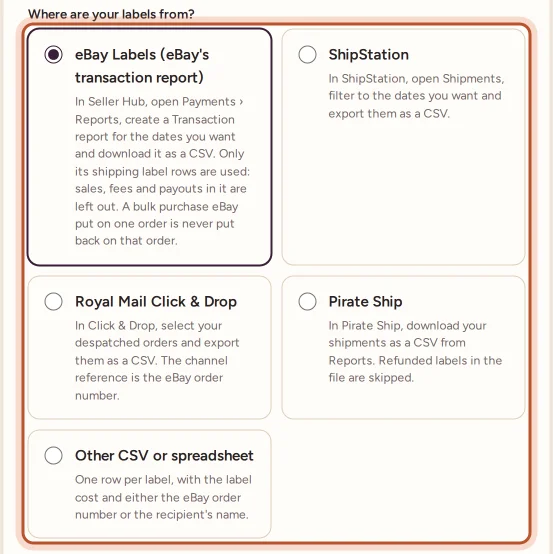
- eBay Labels (eBay's transaction report): in Seller Hub, open Payments › Reports, create a Transaction report for the dates you want and download it as a CSV. Only its shipping label rows are used; sales, fees and payouts in it are left out.
- ShipStation: open Shipments, filter to the dates you want and export them as a CSV.
- Royal Mail Click & Drop: select your despatched orders and export them as a CSV. The channel reference is the eBay order number.
- Pirate Ship: download your shipments as a CSV from Reports. Refunded labels in the file are skipped.
- Other CSV or spreadsheet: one row per label, with the label cost and either the eBay order number or the recipient's name.
Import a file
- On the website, open Shipping and press Import label costs.
- Under Where are your labels from?, pick the service.
- Choose the file and press Upload and check columns.
- On Check the columns, ProfitClerk has picked the columns from their headings. Check each one: eBay order number, Recipient name, Postcode or ZIP, Label or ship date, Label cost, Extra cost added to the label (insurance, surcharges), Label status or voided and, for eBay's report, Row type.
- Under Match labels to orders by, tick the order number, the recipient name, or both.
- Tick the options you want (see below), then press Preview matches.
- Check the preview. Nothing has changed yet. You see Orders to update, Label costs to add, Orders keeping their label cost, Labels with no match and Voided or without a cost, then each row with its matched order and new cost.
- Press Apply to … orders. The orders' profits are worked out again.
How labels are matched
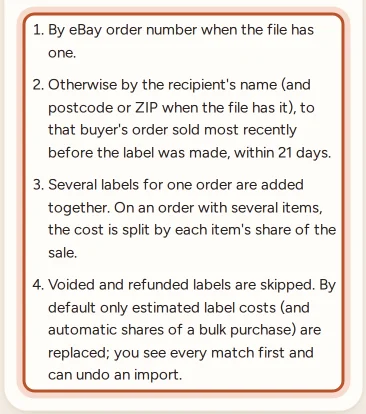
- By eBay order number when the file has one.
- Otherwise by the recipient's name, plus the postcode or ZIP when the file has it, to that buyer's order sold most recently before the label was made, within 21 days. If the buyer has several orders, add a ship date column so the right one is picked.
- Several labels for one order are added together.
- On an order with several items, the cost is split over the items by each one's share of the sale.
- Voided and refunded labels are skipped.
The options
- Also replace label costs from eBay Labels, entered by hand or imported before. Off by default: only estimated label costs (and automatic shares of a bulk purchase) are replaced. Tick it when your file is more accurate than what is there.
- Also import single labels several times my usual label. See the bulk guard below.
eBay's transaction report and the bulk guard
eBay's report shows label costs as minus amounts in Net amount; that is fine. A plus amount is a voided label credit, and it is taken off that order's label.
Two checks stop a bulk purchase landing on one order:
- A row that is an eBay Labels bulk purchase already found on its order is not imported. The preview says Bulk purchase eBay put on this order: shared under Label charges to check, not imported. Share it there instead; see eBay Labels bought in bulk.
- A single row several times your usual label is left out unless you tick the option to include it, as it is often several labels bought together.
Undo or discard
Under Recent label imports each file shows its status:
- Not applied: press Continue to finish it or Discard to drop it.
- Applied: press Undo to put every order it changed back as it was.
Questions people ask
Which files can I upload?
CSV, Excel (.xlsx or .xls) or OpenDocument (.ods), up to 5 MB and 5,000 labels.
My file has no eBay order number. Can it still match?
Yes. Labels can be matched by the recipient's name, with the postcode or ZIP when the file has it, to that buyer's most recent order sold before the label was made.
Will an import overwrite costs I typed in?
Not by default. Only estimated label costs and automatic shares of bulk purchases are replaced, unless you tick the option to also replace other label costs.
Why was a row marked as a bulk purchase and not imported?
It is an eBay Labels purchase eBay put on one order that was really for several. It is shared under Shipping › Label charges to check instead, so it never lands on one order.
Can I undo an import?
Yes. Under Recent label imports, press Undo next to the import and every order it changed goes back as it was.
Can I import from the app?
Importing a file happens on the website. In the app, More › Import postage label costs opens the website page.
Thanks for telling us.