Find any sale with search and filters
Find any eBay sale in ProfitClerk: search by SKU, product, order number or buyer, and filter by date, status, cost confidence, account or missing item cost.
To find a sale, open Orders on the website or the Sales tab in the app and type a SKU, product name, eBay order number or buyer's name into the search box. Narrow the list further with dates, status, cost confidence and eBay account.
On the website
Go to Orders in the sidebar. The filters sit above the list.
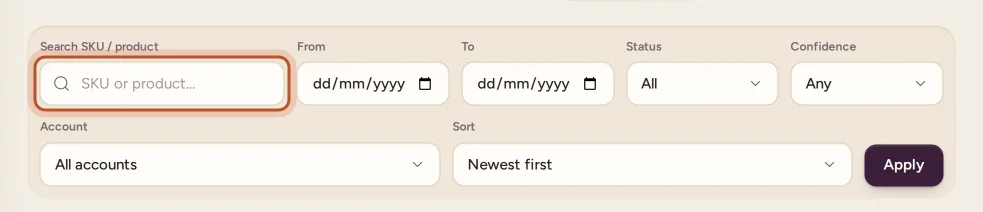
- Search SKU / product: type part of a SKU, a product name, an eBay order number or the buyer's name.
- From and To: the dates the sales were made.
- Status:
- All
- Paid: sales with no refund.
- Refunded: fully refunded, including cancelled orders.
- Partial refund
- Unmatched: the SKU matched no stock item.
- Returns recorded: sales you recorded a return for.
- Confidence: Any, Confirmed, Estimated, Missing or No item cost. See cost confidence.
- Account: shown when you have more than one eBay account connected.
- Sort: Newest first or Oldest first.
- Click Apply. Clear puts every filter back.
The list shows 25 order lines a page. Its heading tells you how many orders match and which cost view is in use, and Profit on this page adds up the lines you can see.
The no item cost banner
When some of the matching lines have no item cost, a banner says how many. Show only these narrows the list to them. See sales with no item cost.
Reading a row
Each row shows the product and SKU, when it sold, Qty, Sale, Fees, Cost, Profit with its confidence tag, ROI · days and Status. A refunded sale shows its refund date under the status. Click the product name or the arrow to open the order's page.
Export what you found
Export CSV at the top downloads every order matching your filters (all pages), with the fees by type, label cost and where it came from, both cost views, ROI, margin, days to sell, taxes and the tax year.
In the app
Open the Sales tab.
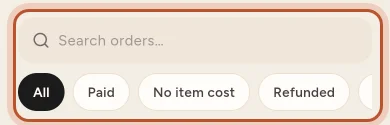
- Search orders…: searches the same fields as the website. Results update as you type.
- Chips: All, Paid, No item cost, Refunded, Partial, Returned and Unmatched.
- Sales are grouped by day, with Today and Yesterday at the top. Scroll down to load more.
- Each sale shows its profit, what the buyer paid, the SKU and quantity, and tags for its status, cost confidence, ROI and days to sell.
- The truck button opens To ship. The sliders button opens Item cost, where you switch between average and FIFO and find Export (CSV), which downloads in your browser.
Pull down to refresh the list.
Other ways to find sales
- Overview: the cost confidence card and the missing item cost warning link straight to the matching orders.
- Stock item page: the Product timeline lists every sale of that item.
- Shipping: lists orders with the buyer and address, with its own search and date filters. See the Shipping page.
Questions people ask
Can I search by eBay order number or buyer name?
Yes. The search box looks in the SKU, the product name, the eBay order number and the buyer's name, on the website and in the app.
How do I see only sales without an item cost?
On the website, choose No item cost in the Confidence menu, or click Show only these on the banner. In the app, tap the No item cost chip.
Can I export just the sales I filtered?
Yes. Export CSV on the Orders page downloads every order matching the current filters, not just the page you see.
How do I see sales from one eBay account?
When you have more than one eBay account connected, the Orders page has an Account menu. Pick the account and click Apply.
Why does the Profit on this page total change when I move between pages?
It adds up only the order lines shown on the current page of results, 25 at a time.
Thanks for telling us.