The order page and its profit breakdown explained
A tour of an order's page in ProfitClerk: headline profit, ROI and margin, the finance breakdown, confidence tags, label costs, returns and eBay's entries.
Every sale in ProfitClerk has its own page that shows, line by line, how the money the buyer paid turned into your Net profit, how sure each cost is, and the raw entries eBay recorded for the order. Open it from Orders on the website (click the product name), or from the Sales tab in the app (tap the sale).
At the top: the headline figures

- Gross sale: what the buyer paid, with the Quantity and the Unit price.
- Net profit — average view (or FIFO view): the profit after every cost, with the Margin underneath.
- Status: paid, partial refund, refunded or unmatched, plus a cost confidence tag and when it sold.
Under them, three small figures:
- ROI: profit ÷ item cost.
- Margin: profit ÷ sale.
- Days to sell: from the day you bought the units to the day they sold.
Each shows a dash and Needs an item cost (or Purchase date unknown) when it cannot be worked out. See margin, ROI and days to sell.
The Average / FIFO switch at the top right changes which item cost this page uses. See average cost vs FIFO.
The finance breakdown
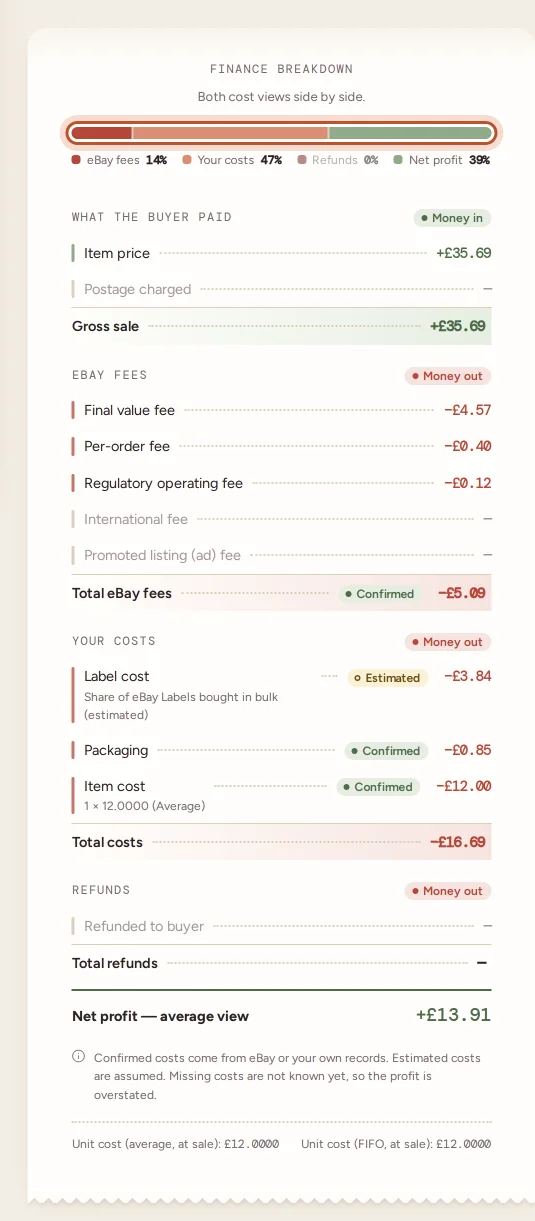
The coloured bar, Where the sale went, splits the gross sale into eBay fees, Your costs, Refunds and Net profit, each as a percentage. Below it, every amount is listed: money in is green with a +, money out is red with a −.
- What the buyer paid: Item price and Postage charged, adding up to the Gross sale.
- eBay fees: Final value fee, Per-order fee, Regulatory operating fee, International fee and Promoted listing (ad) fee are always listed; Other eBay fees and Charity donation appear when there are any. Not split by type yet means an older order whose fees have not been itemised: Refresh finance entries splits them. Then Total eBay fees.
- Your costs: Label cost (with where it came from), Packaging, Item cost (units × unit cost, and the cost view), and Return postage if you recorded one. Then Total costs.
- Refunds: Refunded to buyer, with the date, then Total refunds.
The last line is the Net profit. Under the breakdown you see the unit cost of the sale both ways, Unit cost (average, at sale) and Unit cost (FIFO, at sale), and two boxes comparing the net profit, margin and cost of goods in each view.
The confidence tags
Each of your costs, and the eBay fees total, carries a tag:
- Confirmed: from eBay or your own records.
- Estimated: assumed, for example a label cost taken to equal the postage charged.
- Missing: not known yet, so the profit is overstated.
Hover over a tag on the website to see why. Cost confidence explains each case.
Changing costs on the order
Owners and managers can correct costs right on the page:
- No item cost recorded: when the sale has no item cost, a warning at the top lets you type a Cost / unit and press Set cost.
- Label and packaging: type a Label cost and a Packaging cost, then Save costs. Leave the label cost empty to go back to automatic: the eBay Labels cost, or the postage charged as an estimate when there is none.
In the app, use the Item cost and Postage buttons under the profit card.
If the label is a share of eBay Labels bought in bulk, a note says so with a See the purchase button. See bulk eBay Labels.
Order & buyer, returns and ship-to
- Order & buyer: the eBay order number, the eBay account, SKU, product, whether stock was taken off (Stock decremented), the buyer, and any sales tax on the line, marked as paid by eBay or owed by you.
- Returns: what came back and what happened to it. Use Record a return to add one. See refunds and returns.
- Ship to: the buyer's address, once eBay provides it.
eBay finance entries
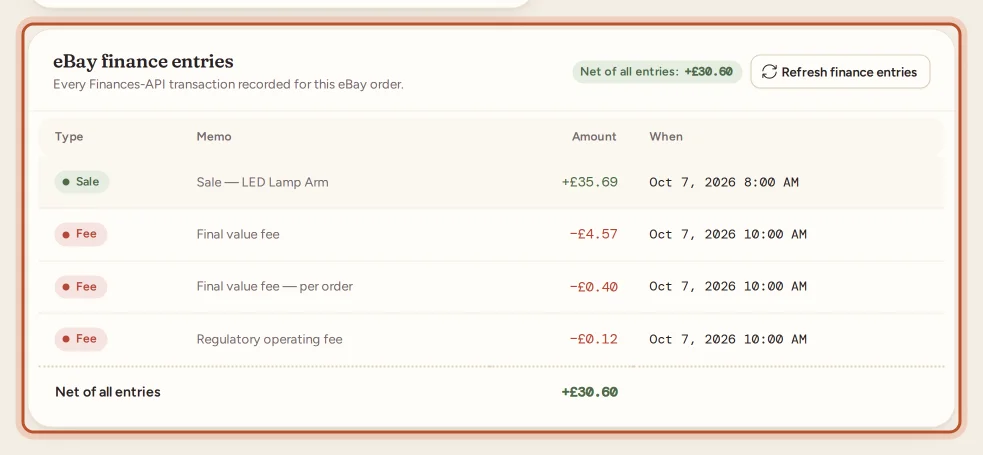
This table lists every transaction eBay's Finances data holds for the order: Sale, Fee, Fee credit, Refund, Shipping and Other, with the memo, amount and time. Net of all entries is what eBay's own records add up to.
Refresh finance entries reads the order from eBay again and recalculates it. New orders get their entries automatically. See when fees and figures become final.
Lines in this eBay order
When a buyer bought several different items in one checkout, each item is its own line with its own page. Lines in this eBay order lists them all, with This line marked. See multi-quantity and multi-item orders.
Questions people ask
How do I open an order's page?
On the website, go to Orders and click a product name or the arrow at the end of its row. In the app, open the Sales tab and tap the sale.
What does Refresh finance entries do?
It reads that one order from eBay again and recalculates its fees, refunds and eBay Labels cost. Use it when you know something changed on eBay and do not want to wait for the next sync.
Why does the order page show a warning that eBay's figure differs?
For sellers eBay shares order earnings with, ProfitClerk compares its breakdown to eBay's own figure. A difference left over is flagged so you can refresh the fees or check the order in Seller Hub.
Can a team member with view-only access change costs here?
No. Owners and managers can set the item cost, label and packaging costs and record returns. Viewers see the same page without the forms.
Why are some fee lines shown at zero?
The main fee types are always listed so you can see each one, even when eBay charged nothing for it on this order.
Thanks for telling us.