Your profile: name, email and password
Change the name, email address and password on your ProfitClerk account, on the website under Settings › Your profile or in the app under More › Edit profile.
Your profile holds the details that belong to you: your name, your email address and your password. You change them on the website under Settings › Your profile, or in the app by tapping your name at the top of More.
Your profile is personal. Changing it does not change anything for your teammates or the workspace.
Open your profile
On the website: select your name at the bottom of the sidebar, or open Settings and the Your profile tab. The top of the page shows your name, email and your role in the workspace (for example Owner).
In the app: open More and tap your name at the top. The Edit profile screen opens.
Change your name or email
Website:
- In the Profile information card, change Name or Email.
- Select Save. You see Saved.
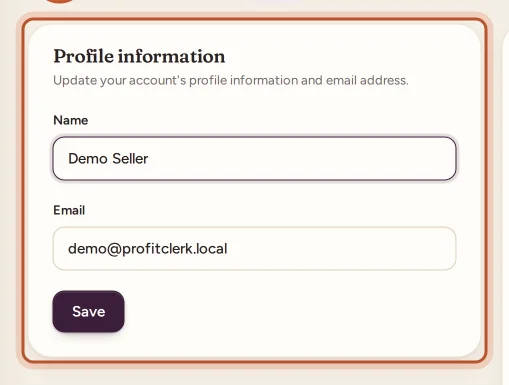
When you change your email address on the website, we send a link to the new address. Until you open it, the card shows "Your email address is unverified." with a button to send the link again. See Confirming your email address.
App: on Edit profile, change the name or email and tap Save.
Each email address can belong to only one ProfitClerk account. If the address is already used, you see a message saying so.
Change your password
Website:
- In the Password card, enter your Current password.
- Enter a New password and type it again in Confirm password. Use the eye button to see what you typed.
- Select Save.
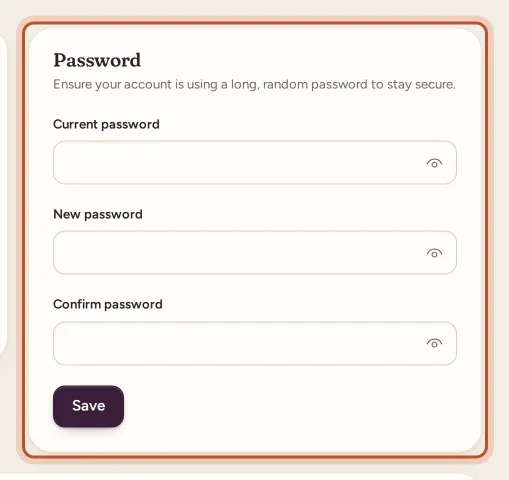
App: on Edit profile, fill in Current password and New password, then tap Save.
The new password must be at least 8 characters. We email you to say your password was changed. Other browsers and phones stay signed in; to sign them out, see Sign-ins and sessions.
If you do not know your current password
- You forgot it: sign out and use Forgot your password? on the sign-in page. See Forgot your password.
- You always sign in with Google or Apple: your account has no password you know. Use Forgot your password? with the same email address to set one. Signing in with Google or Apple keeps working.
Other settings on the same page
The Your profile tab also has:
- Two-step sign-in and your sign-ins: see Two-step sign-in.
- Language: see Language and appearance.
- Notifications and the weekly profit email: see Notification settings.
- Download my data: see Downloading your data.
- Delete account: see Deleting your account or workspace.
Workspace details are separate
Things that belong to the business, such as the eBay accounts, the tax profile, the team and the plan, are not part of your profile. They are under Settings › Workspace & eBay, Team and Billing, and only the owner can change most of them.
Questions people ask
Does changing my email change it for the whole workspace?
No. Your profile belongs to you. Each teammate has their own name, email and password; the workspace itself keeps its own name.
Will I be told when my password changes?
Yes. We send an email to your address whenever the password is changed, so you notice straight away if it was not you.
I sign in with Google and do not know my password. How do I set one?
Use "Forgot your password?" on the sign-in page with your Google address. The link lets you choose a password, and you can still sign in with Google afterwards.
How long must my password be?
At least 8 characters. A longer passphrase that you do not use anywhere else is safer.
Why does the website say my email address is unverified?
You changed your email, so we sent a link to the new address. Open it to confirm the address, or use "Click here to re-send the verification email."
Thanks for telling us.