Team members and roles (owner, manager, viewer)
Invite teammates to your ProfitClerk workspace, choose manager or viewer, change roles or remove people, and see how team seats on your plan are counted.
You can invite people to your ProfitClerk workspace and give each one a role: Manager (can add and change things) or Viewer (can look but not change anything). The person who created the workspace is the Owner. Only the owner can invite, change or remove teammates, on the website under Team or in the app under More › Team members.
The three roles
| Role | What they can do |
|---|---|
| Owner | Everything, including the plan and billing, the team, connecting and disconnecting eBay accounts, the tax profile, the currency and the weekly profit email. There is one owner per workspace. |
| Manager | Adds and changes stock, item costs, expenses, trips, label costs and returns, imports costs and labels, syncs orders and starts the two-year history import. Cannot manage billing, the team or the eBay connections. |
| Viewer | Sees every page, report and figure. Changes nothing. |
Everyone has their own sign-in, profile, password and two-step sign-in.
Team seats
Each plan includes a number of team seats. Every teammate takes one seat; the owner does not. The Team page shows the seats used and left, and the plan cards on the Billing page show Team seats. When every seat is used you see Seat limit reached and cannot invite anyone else until you remove someone or move to a bigger plan. See Plans and what each one includes.
Invite a teammate on the website
- Open Team under Workspace in the sidebar.
- In Invite a member, type their Email.
- Choose a Role: "Managers can edit data; viewers are read-only."
- Select Send invitation.
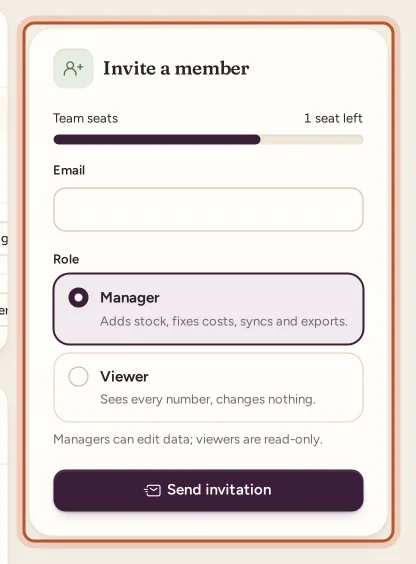
ProfitClerk emails them the invitation and shows the link in Share this invitation link. Use Copy link to send it yourself too, for example in a message. The link expires in 7 days.
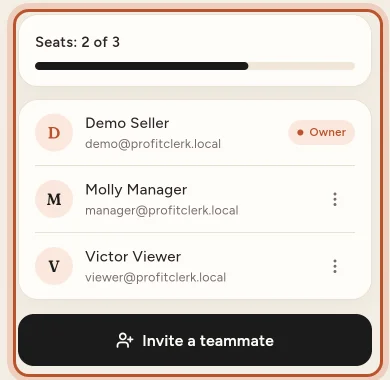
Invite a teammate in the app
- Open More › Team members.
- Tap Invite a teammate, enter the email and choose Manager ("Adds and changes stock, costs, expenses and trips") or Viewer ("Sees everything, changes nothing").
- Tap Invite. "Invitation ready. The link to join is copied: send it to them."
Accepting an invitation
The invited person opens the link and sees Join [workspace]:
- No ProfitClerk account yet: they enter Your name and a Password (at least 8 characters), confirm it, and select Create account & join.
- Signed in with another email: they are asked to sign in with the invited address.
- The address already belongs to another workspace: they need to use a different email, because an account belongs to one workspace.
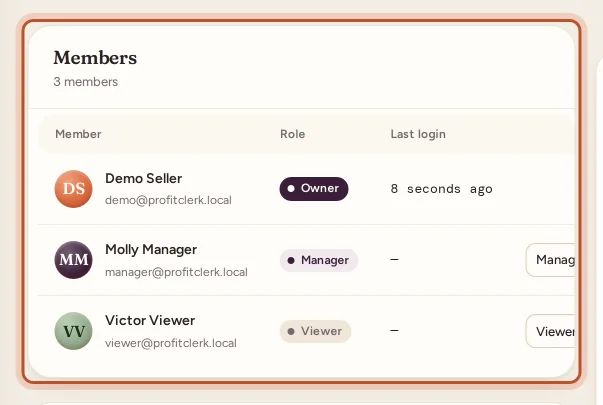
Once they join, they appear under Members with the role you chose.
Pending invitations
Invitations wait under Pending invitations until they are accepted, cancelled or expire. Each shows when it expires. To withdraw one, select Cancel. An expired invitation shows Expired and can no longer be used; send a new one.
Change a teammate's role
- On the Team page, find the person under Members.
- Pick Manager or Viewer in the Role column and select Save.
You see "[name] is now a [role]." The owner's role cannot be changed.
Remove a teammate
- On the Team page, select Remove next to the person (in the app, open them and remove).
- Confirm "Remove [name] from the team?".
Their account is deleted and they can no longer sign in. Everything they added, such as costs and expenses, stays in the workspace. Their seat is free again. Removing a teammate works even without an active plan.
Without an active plan
If the workspace has no active plan, it is read-only for everyone, and you cannot invite new teammates until you choose one: "Your workspace needs an active plan before more teammates can be invited." See Read-only mode without a plan.
Questions people ask
What can a manager do that a viewer cannot?
Managers add and change stock, costs, expenses, trips, label costs and returns, and can sync orders. Viewers see everything but change nothing.
What can only the owner do?
The owner manages the plan and billing, the team, the eBay accounts, the tax profile, the currency and the weekly profit email setting.
Does the owner use a team seat?
No. Seats count the teammates you invite. You can see how many are used and left on the Team page.
How long does an invitation link work?
Seven days. After that it shows as Expired and you can send a new invitation.
Can someone be in two workspaces with the same email?
No. An account belongs to one workspace. If the address already belongs to another workspace, the invitation asks them to use a different email.
Can I change who owns the workspace?
Not from the Team page; the owner role cannot be changed. Contact us with Help with my account if the business changes hands.
Thanks for telling us.