Notification settings and the weekly profit email
Choose which ProfitClerk push notifications you get on your phone and browser, turn them on when the phone blocks them, and switch the weekly profit email.
ProfitClerk can send you push notifications on your phone and in your browser, for example for every sale with its profit, refunds, eBay payouts and sync problems. You choose which ones you get on the website under Settings › Your profile › Notifications, or in the app under More › Notifications. The workspace owner also gets a weekly profit email, which can be turned off.
Choose which notifications you get
In the app:
- Open More › Notifications.
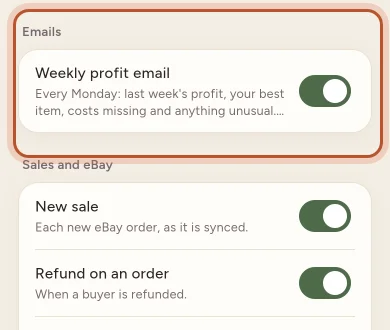
- Switch each notification on or off. Your choice is saved straight away.
"Choose which notifications you receive. This applies to this phone, your other devices and your browser."
On the website:
- Open Settings and the Your profile tab, and scroll to Notifications.
- Tick the notifications you want and select Save notifications.
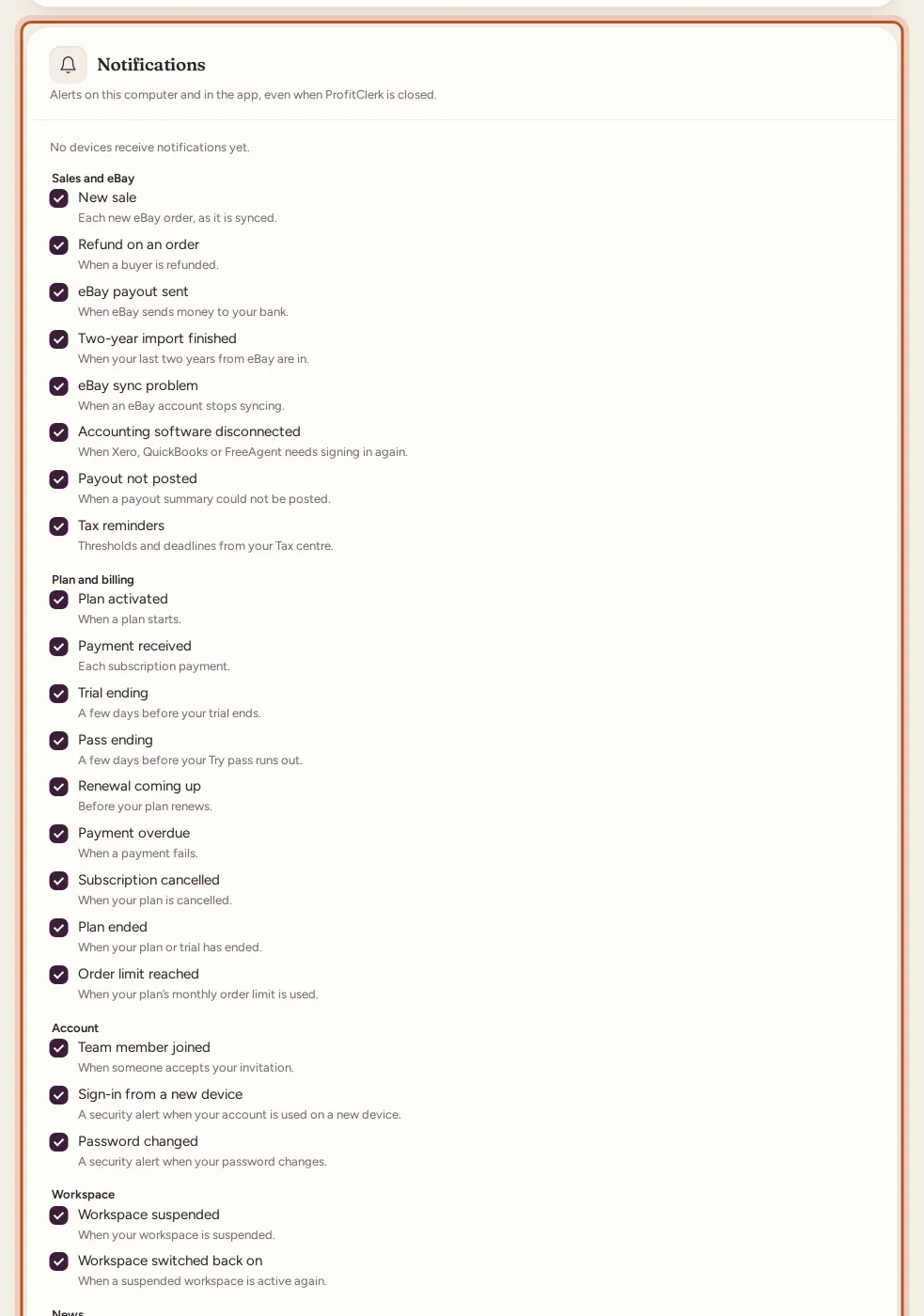
The card also shows which devices receive notifications, for example "Receiving on: 1 browser, 1 iPhone or iPad."
The notifications you can get
You see the ones that apply to you. They are grouped like this:
- Sales and eBay: New sale (each new eBay order, as it is synced, with where the item is kept when its stock item has a storage location), Refund on an order, eBay payout sent, Two-year import finished, eBay sync problem, Accounting software disconnected, Payout not posted and Tax reminders (thresholds and deadlines from your Tax centre).
- Plan and billing: Plan activated, Payment received, Pass ending, Renewal coming up, Payment overdue, Subscription cancelled, Plan ended and Order limit reached.
- Workspace: Team member joined, Workspace suspended and Workspace switched back on.
- Account: Sign-in from a new device and Password changed, two security alerts.
- News: News and announcements, occasional messages sent to everyone.
Tapping a notification opens the right place in the app, for example the order for a new sale.
Turn notifications on on your phone
The app never asks by itself straight after you install it. Once you are on Home, a sheet explains what notifications are for ("Every sale, with the profit it made", "Refunds and eBay payouts" and so on). Tap Turn on notifications and allow them in the phone's own box. Not now asks again later.
If you said no, More › Notifications shows Notifications are off on this phone:
- Tap Turn on, or on iPhone Open Settings.
- On iPhone: Settings › ProfitClerk › Notifications, and allow notifications.
- On Android: Settings › Apps › ProfitClerk › Notifications, and allow them.
Come back to the app and they start working. For more on notifications in the app, see Notifications in the app.
Turn notifications on in your browser
In the Notifications card on the website, This browser shows whether notifications are on. Select Turn on and allow them when the browser asks.
- If it says the browser blocks notifications, allow them in the browser's site settings for ProfitClerk, then reload the page.
- On an iPhone, add the ProfitClerk site to your Home Screen first; Safari only shows notifications for sites added there.
Select Turn off to stop notifications in this browser only.
The weekly profit email
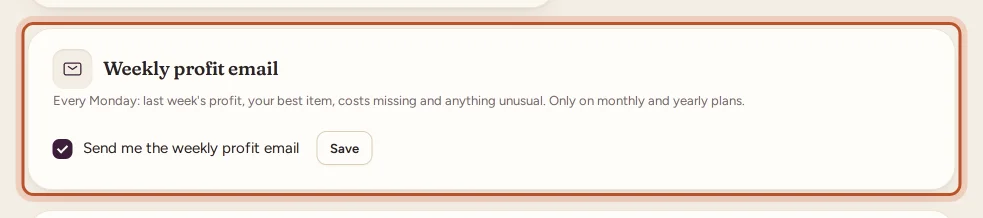
Every Monday the workspace owner gets an email with last week's profit compared with the week before, sales, orders and margin, the best item, sales still missing an item cost, and anything unusual (for example an eBay account that stopped syncing, or sales that made a loss).
It is sent while the workspace has a monthly or yearly plan. It is not sent on the pass, once a plan has ended, or when there is no eBay account and no sales.
To turn it on or off (owner only):
- Website: open Settings (the Workspace & eBay tab), find Weekly profit email, tick or untick Send me the weekly profit email, and select Save.
- App: More › Notifications, then Weekly profit email under Emails.
Emails you always get
Some emails are part of running your account and are sent whatever you choose here: receipts, renewal and payment warnings to the owner, team invitations, password reset links, and security emails about new sign-ins and password changes. See Sign-ins and sessions.
Questions people ask
Do my choices apply to every device?
Yes. The notifications you switch on or off apply to this phone, your other devices and your browser.
Why do I get no notifications on my phone?
The phone itself may block them. Open More › Notifications; if it says "Notifications are off on this phone", tap Turn on or Open Settings and allow them for ProfitClerk.
Who gets the weekly profit email?
The workspace owner, every Monday, while the workspace has a monthly or yearly plan. It is not sent on the pass or once a plan has ended.
Can I stop the weekly profit email?
Yes. The owner turns it off under Settings › Weekly profit email on the website, or More › Notifications › Emails in the app.
Can I turn off security alerts?
Each push notification, including Sign-in from a new device, can be switched off. The security emails about new sign-ins and password changes are still sent, so you notice if someone else uses your account.
Thanks for telling us.