Changing the language and dark mode
Use ProfitClerk in English, German, French, Italian, Spanish, Dutch, Polish or Traditional Chinese, on the website and in the app, and switch the app to dark mode.
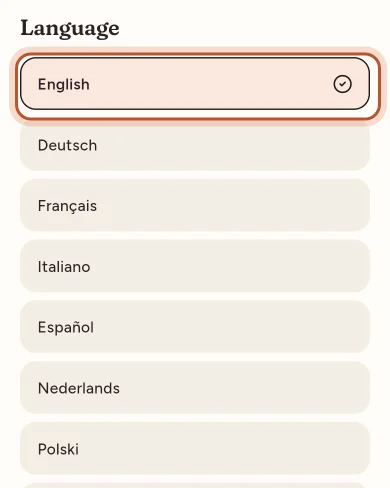
ProfitClerk works in eight languages: English, Deutsch, Français, Italiano, Español, Nederlands, Polski and 繁體中文. You choose yours on the website under Settings › Your profile › Language, or in the app under More › Language. The choice is saved to your account, so it follows you wherever you sign in. Dark mode is in the app, under More › Appearance.
Change the language on the website
- Open Settings and the Your profile tab (or select your name at the bottom of the sidebar).
- Find the Language card: "Choose the interface language. Applies everywhere you sign in."
- Pick a language under Interface language.
- Select Update language. You see Language updated. and the page switches straight away.

On the public ProfitClerk website (the pages you see before signing in), there is also a language switcher in the header and the footer. When you are signed in, using it saves the language to your account as well.
Change the language in the app
- Open More.
- In the App group, tap Language. It shows the language in use.
- Pick a language from the list. The app changes straight away.
What the language changes
- Every menu, button, message and help text.
- How dates and numbers are written, for example the order of day and month, and decimal commas.
- The emails we send you, such as alerts and the weekly profit email.
It does not change:
- your currency or your country and tax profile, which belong to the workspace
- your eBay data, such as item titles, which stay as they are on eBay
Each person in a workspace chooses their own language, so an owner in Germany and a manager in Poland can each use their own.
When no language is chosen
Until you choose one, ProfitClerk uses your browser's or phone's language if it is one of the eight, and English otherwise.
If the language looks wrong
- The website shows another language after you sign in. Your account has a language saved. Change it in the Language card and select Update language.
- The public pages show another language. They follow your browser until you pick one with the language switcher in the header or footer.
- Emails arrive in the wrong language. They use the language saved on your account. Change it on the website or in the app, and the next emails follow.
- Dates or numbers look unusual. They follow the language you chose, for example a decimal comma in German or French.
Dark mode in the app
- Open More.
- In the App group, tap Appearance.
- Choose:
- Like my phone: light or dark, following your phone's setting
- Light: always light
- Dark: always dark
For more about the app's look, including reduced motion, see Dark mode and language in the app.
The website uses its own light design and has no dark mode setting.
Questions people ask
Which languages can I use?
English, Deutsch, Français, Italiano, Español, Nederlands, Polski and 繁體中文 (Traditional Chinese).
If I change the language on the website, does the app change too?
Your choice is saved to your account, so it applies wherever you sign in, including the emails we send you.
Does each teammate see the same language?
No. The language belongs to each person, so teammates can each use their own.
Why are a few words still in English?
New features are written in English first and translated in batches, so new words can show in English for a short while.
Does changing the language change my currency or tax settings?
No. The language changes the words and how dates and numbers are written. Currency and tax come from your workspace's country and tax profile.
Is there a dark mode on the website?
Dark mode is a setting in the app, under More › Appearance. The website uses its own light design.
Thanks for telling us.