Finding your way around the app's five tabs
The ProfitClerk app has five tabs (Home, Sales, Stock, Money and More). See what is on each one and where to find costs, reports, settings and help.
The app is organised into five tabs along the bottom of the screen: Home, Sales, Stock, Money and More. Home is your profit at a glance, Sales is every order, Stock is what you have and what it cost, Money is your books and tax, and More holds your settings and help.
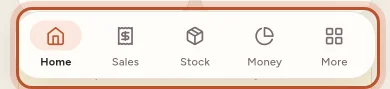
The tab you are on is highlighted in terracotta. Each tab keeps its place while you visit the others, so you can hop between them without losing your search or scroll position.
Home
Your net profit for the last 7, 30 or 90 days, profit by week, the money in and out, notices that need your attention, the last 12 months, recent sales and low stock. At the top are the sync button and the + button. See The Home screen.
Sales
Every eBay order with the profit it made. You can:
- search orders, and filter them: All, Paid, No item cost, Refunded, Partial, Returned and Unmatched
- tap an order to see its full finance breakdown, add the item cost, change postage and packaging, or record a return
- tap the van button for To ship: the parcels with their label costs, and eBay Labels charges to check
- tap the sliders button to choose the Item cost method (average cost or first in, first out) or to Export (CSV)
See Sales and orders in the app.
Stock
Your Stock value (what the units on hand cost you), with items, units and how many are low. Search by name, SKU or shelf, filter by In stock or Low stock, and sort. Three shortcuts open Job lots, Unsold stock and Sourcing. Tap an item to restock it, edit it, or see its history. See Stock in the app.
Money
Net profit for a report period (this tax year, last tax year, 3, 6 or 12 months), the Profit and loss, and your Profit over time. Under Books and tax are the Tax centre, Expenses, Mileage and eBay payouts. Under More reports are Accounting, eBay fees, Promoted Listings, Sales tax and VAT, Best sellers & slow movers and Breakdowns. See Money in the app.
More
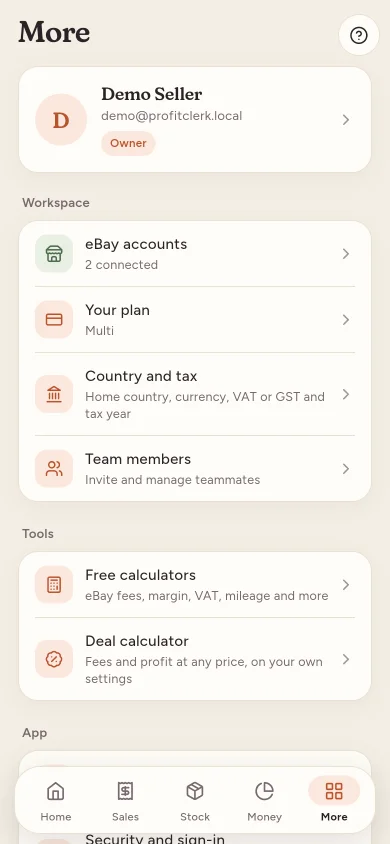
At the top is your name, email and role. Tap it to edit your profile. Below it:
- Workspace: eBay accounts, Your plan, Country and tax, and Team members (owners only)
- Tools: Free calculators and the Deal calculator
- App: Notifications, Security and sign-in, Appearance and Language
- On the website: Import item costs, Import postage label costs and Open the website. These open in your browser, already signed in.
- Help: Contact support and Legal & privacy (including Download my data)
- Sign out and Delete account
The + button
The black + button at the top of Home, Stock and Money opens Quick add: stock, a job lot, an expense, a trip, or a price check. See Quick add.
Opening a notification
Tapping a notification takes you to the right place: a new sale or refund opens that order, and other notifications switch to the matching tab (Sales, Stock, Money or More).
Questions people ask
Where are expenses and mileage in the app?
In the Money tab, under Books and tax. You can also add one quickly with the + button and An expense or A trip.
Where are the settings?
In the More tab. It has your eBay accounts, your plan, country and tax, team members, notifications, security, appearance and language.
Where are the labels and parcels to post?
In the Sales tab. Tap the van button at the top to open To ship, with each parcel's label cost.
Why is there no + button on Home for me?
Viewers can look but not change anything, so the app hides the sync and + buttons on Home and Stock and the import links in More. Ask the workspace owner to make you a manager if you need to make changes.
How do I go back to Home quickly?
Tap Home in the tab bar. On Android, the back button on any other tab also takes you to Home.
Thanks for telling us.