Get the mobile app on iPhone and Android
Install the ProfitClerk app on iPhone or Android and sign in with the same account as the website, by email and password, Google, or Apple on iPhone.
The ProfitClerk app is for iPhone and Android, and it uses the same account as the website. Install it, tap I already have an account and sign in the way you do on the website: you see the same sales, stock, costs and reports straight away.
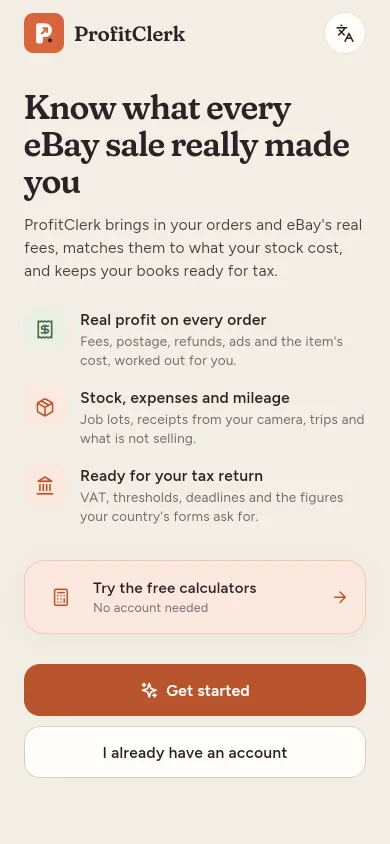
Install the app
- On an iPhone, open the App Store. On an Android phone, open Google Play.
- Search for ProfitClerk and install it.
- Open the app. The first time, the logo plays a short intro; after that the app opens straight away.
On a phone you can also tap the App Store or Google Play button at the bottom of any page of the website, which opens the app's page in the store.
When an important update comes out, older versions of the app ask you to update before you carry on: see The app asks you to update it.
The app is a full version of ProfitClerk, not a cut-down companion. Sales with their profit, item costs, stock and job lots, expenses with receipt photos, mileage, the profit and loss, the tax centre, payouts and your plan all work on the phone.
Sign in with your existing account
On the welcome screen, tap I already have an account. You can then:
- Sign in with your email and password. Type the email you use on the website and your password, then tap Sign in.
- Continue with Google. Use the Google account your ProfitClerk account uses.
- Continue with Apple. On iPhone only. The Android app does not offer Apple.
If you have turned on two-step sign-in, a Two-step sign-in screen asks for the 6-digit code from your authenticator app. Lost your phone? Tap Lost your phone? Use a recovery code and type one of the recovery codes you saved. See Two-step sign-in.
Forgotten your password? Tap Forgot your password? under the password box. The app sends a reset link to your email; you choose the new password in your browser, then come back and sign in with it.
New to ProfitClerk? Create your account in the app
- Tap Get started on the welcome screen.
- Enter your Name, Email, a Workspace name (optional) and a Password of at least 8 characters, or use Sign up with Google (or Sign up with Apple on iPhone).
- Tick the box to agree to the Terms of Service and tap Create account.
- If you are asked to Confirm your email, open the link we sent you, on the phone or on a computer. The app notices by itself, or tap I've confirmed it.
- Choose a plan, then connect your eBay account. The Get set up card on Home walks you through the rest: your country and tax, and what your stock cost.
What you see once you are in
The app opens on Home, with your net profit for the last 7, 30 or 90 days. Five tabs along the bottom take you to Home, Sales, Stock, Money and More, and the + button adds stock, a job lot, an expense or a trip in a couple of taps. See Finding your way around the app.
Shortly after your first sign-in, the app asks whether you would like notifications for new sales, refunds, payouts and eBay problems. You can say Not now and turn them on later in More › Notifications.
Using the app and the website together
Anything you change on one shows on the other: an item cost added on your phone is on the website the next time you load a page, and the other way round. Your choice of light or dark mode and of cost method (average cost or FIFO) is kept on each phone; the language you pick is saved to your account too.
Team members sign in with their own account. Managers can add and change things; viewers can look but not change anything.
Questions people ask
Is the app a different account from the website?
No. The app and the website share one account and one workspace. Sign in with the same email and password, or the same Google or Apple sign-in, and you see the same sales, stock and figures.
Can I do everything in the app, or do I need the website?
Almost everything works in the app, from costs and job lots to expenses, mileage and the tax centre. A few things that only work in a browser, such as eBay's own sign-in, accounting sign-in and file downloads, open the website for you and bring you back.
Why can't I see Sign in with Apple on my Android phone?
Sign in with Apple is offered in the iPhone app only. On Android, use Google or your email and password. If you created your account with Apple and never set a password, tap Forgot your password to choose one, then sign in with your email.
I use two-step sign-in. Does the app ask for the code?
Yes. After your password the app opens a Two-step sign-in screen for the 6-digit code from your authenticator app. If you have lost your phone, tap Lost your phone? Use a recovery code.
Can I try it before creating an account?
Yes. Tap Try the free calculators on the welcome screen to use the eBay fee, margin, VAT and other calculators without signing in.
Thanks for telling us.