The Home screen in the app, explained
What every part of the app's Home screen shows, including net profit for 7, 30 or 90 days, profit by week, tiles, notices, the last 12 months and recent sales.
Home is the first tab in the app. It shows your net profit for the last 7, 30 or 90 days, how that profit came in week by week, the money in and out behind it, and anything that needs your attention, such as sales with no item cost.
At the top you see a greeting and your workspace name. The round arrows button syncs with eBay, and the + button opens Quick add.
The net profit card
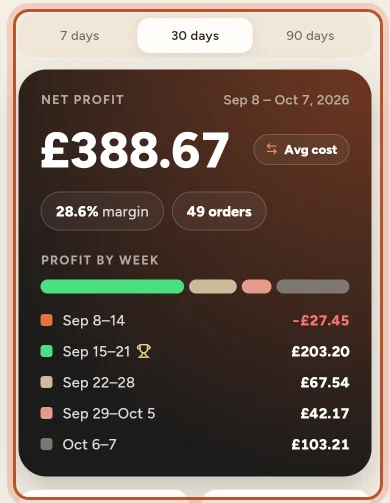
- Period switch. Above the card, choose 7 days, 30 days or 90 days. The dates covered are shown at the top right of the card.
- Net profit. The big figure is what your eBay sales made after eBay fees, postage, refunds and the cost of the items. It counts up when it loads.
- Cost method pill. Beside the figure, a small pill says Avg cost or FIFO cost. Tap it to switch how item costs are counted. Every profit figure in the app follows it. See Average cost or FIFO in the app.
- Margin and orders. Under the figure, the margin and the number of orders.
- Profit by week. A bar split into the parts of the period: by day for 7 days, by week for 30 days and by month for 90 days. The part that made the most profit is green and gets a trophy, so you can see your best week at a glance.
The tiles
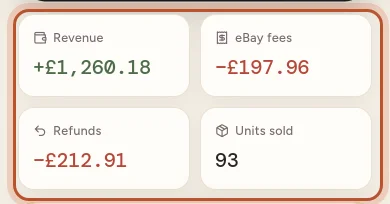
Four tiles show what is behind the profit: Revenue (money in, green), eBay fees and Refunds (money out, red) and Units sold.
Monthly profit goal
Under the tiles, the Monthly profit goal card shows this calendar month's profit against your goal, with a bar, the percentage reached and whether you are on track. No goal yet? Tap Set a monthly profit goal. Owners and managers change it with the pencil on the card. See Set a monthly profit goal.
Notices
Notices appear only when they matter:
- Orders with no item cost. Their profit is overstated, so they are left out of the margin. Tap Show them to open Sales filtered to those orders.
- You are offline. The app shows your figures from the last time it was connected. Tap Retry when you have a signal.
- Your workspace is read-only. Your plan has ended: everything is still there, but new orders do not sync until a plan is chosen.
- eBay is not connected. Tap Connect eBay to link your account.
- Importing your last two years from eBay. While the two-year import runs, a card shows how far it has got.
New workspaces also see a Get set up card: choose a plan, connect eBay, set your country and tax, and add what your stock cost.
Profit by day
A bar chart with one bar per day of the period, green above the line and red for a day that lost money. Touch a bar to see that day's date and profit.
Last 12 months
The Last 12 months card compares your profit with the 12 months before, for example "Up 12.5% on the 12 months before", with revenue, fees and refunds underneath. If some sales have no item cost, or the two-year import is still running, it says so.
How sure are these costs?
When the period has sales, a Cost confidence card shows how much of the profit rests on confirmed costs and how much on estimated or missing ones, with the number of orders at each level.
Recent sales and low stock
Recent sales lists your latest sales with the profit each made and the sale price. Tap one to open the order, or All sales to go to the Sales tab. Low stock lists items about to run out, with how many are left. Tap All stock to open the Stock tab.
At the bottom, Plan usage shows meters for your plan's limits, such as orders this month.
Milestones and confetti
When your profit over the last 12 months passes a milestone (100, 250, 500, 1k and so on up to 1 million in your currency), the screen throws confetti and says "Milestone! You have made … profit in the last 12 months." Each milestone is celebrated once, on each phone, and a quieter month never takes it away. If your phone is set to reduce motion, the app stays still.
Keeping Home up to date
Pull the screen down to refresh. Home also refreshes by itself when you come back to the app after more than two minutes away.
Questions people ask
Why does the net profit on Home differ from the Money tab?
Home shows profit on your eBay sales for the last 7, 30 or 90 days. The Money tab's profit and loss also takes off business expenses, mileage and shop fees, and uses the report period you pick there.
What does the green bar in Profit by week mean?
It is your best part of the period, the week (or day, or month) that made the most profit. It also gets a small trophy.
Why did confetti appear on my screen?
Your profit over the last 12 months has just passed a milestone, such as 100, 1,000 or 10,000 in your currency. Each milestone is celebrated once per account on each phone.
Why is there a notice about orders with no item cost?
Some sales in the period have no cost for the item, so their profit is too high. They are left out of the margin until you add a cost. Tap Show them to see those sales.
How do I make Home fetch my newest sales?
Pull the screen down to refresh it. To ask eBay for new orders now, tap the round arrows button at the top and then Sync now.
Thanks for telling us.