Receipts and payment history
Find every ProfitClerk payment under Billing › Transactions, open and print a receipt for your records, and see the payments list in the app under Your plan.
Every payment for your ProfitClerk plan is listed on the website under Billing › Transactions, each with a receipt you can open and print. The workspace owner is also emailed a receipt for each payment. In the app, the payments are listed under More › Your plan › Payments.
Only the workspace owner can see billing.
See your payment history on the website
- Open Billing under Workspace in the sidebar.
- Select Transactions at the top right.
At the top you see three totals:
- Paid in range: the total of paid payments (for all time, or for the dates you filtered).
- Paid transactions: how many payments went through.
- Rows shown: how many rows match the current filter.

The table lists every payment, newest first, with:
| Column | What it shows |
|---|---|
| Number | The payment's own number, also printed on the receipt |
| Date | When the payment was made |
| Plan | Which plan it paid for |
| Gateway | How it was paid, for example on the website or through a store |
| Amount, Discount, Tax, Total | The price, any discount taken off, any tax added, and what was charged |
| Status | paid, pending, failed, refunded or cancelled |
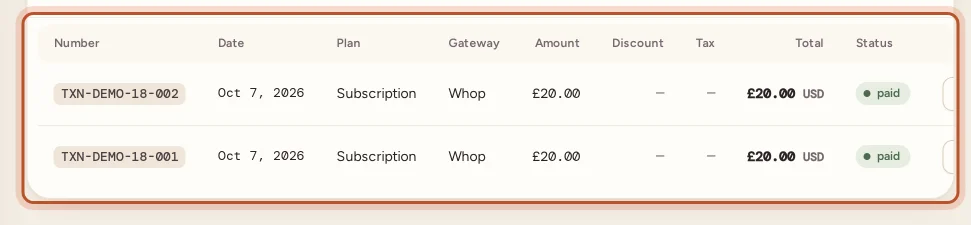
To see one period, for example a tax year, set From and To dates and select Apply. Clear shows everything again.
Open and print a receipt
- In the Transactions table, select Receipt on the payment.
- The receipt shows:
- Billed to: your workspace name
- Plan and Billing cycle (Monthly, Yearly or One-time)
- Date paid and Payment method
- Reference: the payment provider's reference, when there is one
- Subtotal, any coupon or offer, tax if any, and the Total
- Select Print receipt. To keep a PDF copy, choose Save as PDF in your browser's print window.
You can also open the receipt straight after paying: the Payment received page has a View receipt button.
Receipts by email
The workspace owner is emailed:
- a receipt when a plan or pass is bought
- a receipt each time a plan renews
If you cannot find them, check your spam folder, and make sure the email address on your profile is right. See Your profile: name, email and password.
Payments in the app
Open More › Your plan and scroll to Payments. Each row shows the plan, the date paid, where it was paid and the amount.
If you bought your plan in the App Store or Google Play, Apple or Google also send you their own receipt for each charge, and list it in your store account's purchase history.
A payment you do not recognise
- A row marked pending that stays pending may be a checkout you started but did not finish. Nothing is taken for it.
- A row marked failed means the card was declined, and no money was taken. See When a renewal payment fails.
- For anything else, use Contact us and choose Help with my account, with the payment's number.
Questions people ask
Do I get a receipt by email?
Yes. The workspace owner is emailed a receipt when a plan is bought and when it renews.
How do I save a receipt as a PDF?
Open the receipt and select Print receipt. In your browser's print window, choose Save as PDF as the printer.
Who is named on the receipt?
The receipt is billed to your workspace's name. It also shows the plan, the billing cycle, the date paid, the payment method and a reference.
Why does a payment say "failed" or "pending"?
Pending means the payment provider has not confirmed it yet. Failed means it did not go through, so no money was taken for it. Only paid rows count towards the totals.
Are App Store and Google Play purchases listed?
Yes. Payments made in the app are recorded in the same list and in the app's Payments section. Apple and Google also send you their own receipt.
Thanks for telling us.