Categories, brands and labels for your stock
Give each stock item a category, brand and label in ProfitClerk to see revenue, profit and margin by group in Breakdowns. eBay's category and brand fill gaps.
Each stock item in ProfitClerk can have a Category, a Brand and a Label. They are used to group your sales in Reports › Breakdowns, where you see revenue, profit, margin and average sale price for each group. Leave category or brand empty and ProfitClerk uses eBay's from the listing; labels are your own tags.
Set them on an item
On the website
- Go to Inventory and open the item.
- Click Edit details.
- Under Category, brand and label, fill in any of:
- Category, for example "Trainers";
- Brand, for example "Nike";
- Label, for example "Car boot" or "Supplier A".
- Click Save changes.
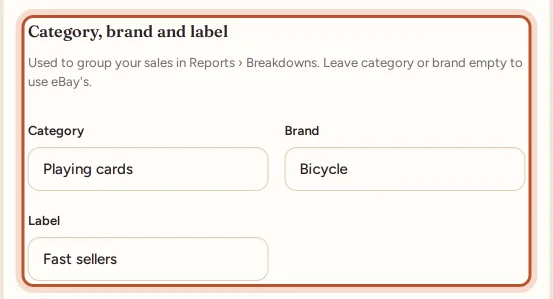
As you type, names you have used before are suggested, so the same group is spelt the same way each time. The item's page then shows them as tags under its name, such as Category: Trainers.
In the app
Open the item in Stock, tap Edit and fill in Category, Brand and Label under Category, brand and label. Tap Save. Suggestions appear here too.
Where the values come from
| Field | Your value | When you leave it empty |
|---|---|---|
| Category | The category you set on the item | eBay's category for the listing (the most specific one) |
| Brand | The brand you set on the item | The Brand shown on the eBay listing |
| Label | The label you set on the item | Nothing: the sale is under No label |
eBay's category and brand are read from your listings as they sync. A sale whose SKU matched no stock item can still be grouped by eBay's values when its listing is known.
Groups ignore capitals, so "nike" and "Nike" are counted together. Sales with no value make one group, No category, No brand or No label, listed last.
See your sales by group
Go to Reports and open Breakdowns. Choose Group by: Category, Brand, Label or Marketplace (the eBay site the item was listed on). For each group you see:
- Orders and Units;
- Revenue and Profit;
- Margin (left out for lines without an item cost);
- Avg sale price per unit, including the postage the buyer paid;
- Share of profit.
The cards at the top show the Most profitable group, how many order lines are not grouped yet and the Average sale price. Set categories, brands and labels in Inventory takes you to your stock. Export CSV downloads the table.
In the app, Breakdowns is under the Money tab's reports.
Ideas for labels
Labels are the most flexible of the three. Some ways sellers use them:
- Supplier or source: "Wholesaler A", "Charity shops", "Auction house".
- Season or theme: "Christmas", "Summer 2026".
- Storage or batch: "Box 12", "March buying trip".
- Condition: "New with tags", "Pre-owned".
Good to know
- Changing an item's category, brand or label regroups all its sales, past and future, in Breakdowns. Profit figures do not change.
- Each item has one value per field. To compare across two dimensions, combine them in a label, for example "Nike – car boot".
- The values never go to eBay; ProfitClerk only reads from eBay.
Questions people ask
Do I have to set a category and brand on every item?
No. When you leave them empty, ProfitClerk uses the category and the Brand that eBay shows on the item's listing. You only need to fill them in to group differently from eBay.
What is a label for?
It is your own tag, for example a supplier, a season, a box or a buying trip. Labels never come from eBay, so set them on each item yourself.
Does it matter how I type the names?
Capitals do not: trainers and Trainers are one group. Spelling does, so pick from the suggestions as you type to keep groups together.
Why are some sales under No category or No brand?
Neither the stock item nor the eBay listing gives them one. They are listed last in Breakdowns.
Can I set them when I first add an item?
Set them after adding it: open the item and use Edit details on the website, or Edit in the app.
Thanks for telling us.