Import item costs from a spreadsheet or CSV
Already track what your items cost in a spreadsheet? Import it into ProfitClerk to fill in the item cost of past eBay sales, check every match, and undo if needed.
If you keep what each item cost you in a spreadsheet, Import costs brings those costs into ProfitClerk and matches them to your past eBay sales by order number, SKU or item title. You map the columns, see every match in a preview before anything changes, and can undo the whole import afterwards. By default it only fills in sales that have no item cost.
Before you start
Your sheet needs:
- a cost: per item, or for the whole row;
- something to match on: the eBay order number, the SKU / custom label or the item title (one is enough, more is better).
Useful extras: the Sale date (to tell apart repeat sales of the same SKU or title), the Quantity, a Postage label cost and a Packaging cost.
Import your costs
-
Go to Orders and click Import costs (in the app: More › Import item costs, which opens the website).
-
Under Upload your spreadsheet, choose your file and click Upload and map columns.
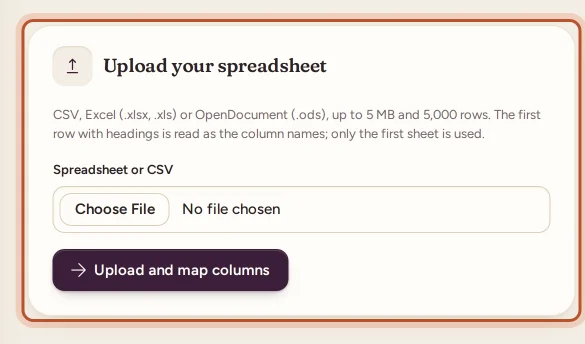
Upload your spreadsheet -
On Map your columns, check each field against a column of your sheet. ProfitClerk guesses from the headings; pick Not in my sheet for anything you do not have. Item cost is required. The First rows of your file are shown to help.
-
On the right:
- Match rows to orders by: tick eBay order number, SKU / custom label and/or Item title.
- The cost column is: per item, or for the whole row (divided by its quantity).
- Tick Also replace costs orders already have only if you want the sheet to win over costs already in ProfitClerk.
-
Click Preview matches.
-
Check the Preview: nothing has changed yet. The totals show Rows, Rows matched, Orders to update, Orders keeping their cost, Rows with no match and Rows without a cost. Each row shows what it matched and the New cost / item. Use Change mapping to go back.
-
Click Apply to … orders.
The message confirms how many orders were updated from how many rows.
How rows are matched
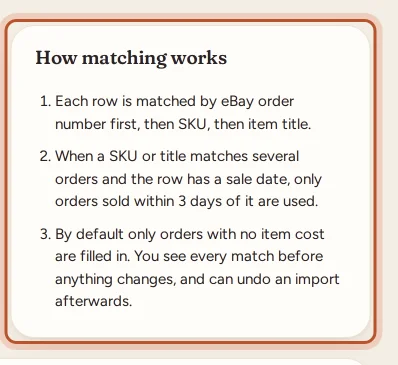
- Each row is matched by eBay order number first, then SKU, then item title, using the ones you ticked.
- A SKU or title can match several sales. When the row has a sale date, only sales made within 3 days of it are used.
- Unless you tick Also replace costs orders already have, orders that already have an item cost keep it and are counted as Orders keeping their cost.
A row that matches several sales (a SKU you sold many times, say) gives all of them the same cost per item.
What an import changes
- Each matched sale gets the row's cost per item, used for both the average and FIFO views and marked edited on Orders, like a cost you typed.
- If the sheet has a Postage label cost, it becomes the sale's label cost (an import beats eBay's own figure). A Packaging cost replaces the sale's packaging.
- Profit, margin and ROI update everywhere straight away.
- Your stock is not touched: no units are added or taken off.
Recent imports and undo
The Import costs page lists your Recent imports with their status:
- Not applied: uploaded but not finished. Continue picks it up; Discard deletes it.
- Applied: done. Undo puts every order it changed back as it was.
- Undone: reversed.
After the import
Check Orders with the Confidence filter set to No item cost to see what the sheet did not cover, and fill those in with Add cost. For future sales, add your items to Inventory with the same SKU as your listings, so their costs are picked up automatically. See sales with no item cost.
Questions people ask
Which file types can I upload?
CSV, Excel (.xlsx or .xls) or OpenDocument (.ods), up to 5 MB and 5,000 rows. Only the first sheet is read, and the first row with headings is used as the column names.
Will an import overwrite costs I already entered?
Not unless you ask it to. By default only orders with no item cost are filled in. Tick the option to also replace costs orders already have.
Does importing costs add items to my stock?
No. An import sets the item cost on past sales only. To track stock for future sales, add the items in Inventory with the same SKU as your listings.
My sheet has the cost for the whole row, not per item. Is that a problem?
No. Choose for the whole row under The cost column is, and map a Quantity column; the cost is divided by the quantity.
How do I undo an import?
Go back to Import costs and click Undo next to the import under Recent imports. Every order it changed is put back as it was.
Can I import costs from the app?
The app opens the website for this: go to More and choose Import item costs.
Thanks for telling us.