Import your stock list from a spreadsheet
Moving from a spreadsheet or another reseller tool? Bring your whole stock list into Inventory at once: costs, quantities, dates, sources and shelves.
Coming from a spreadsheet or another reseller tool? Import stock brings your whole stock list into Inventory in one go: each row becomes a stock item, or restocks one you already have, with what it cost, how many you have, when and where you bought it and where it is kept.
Before you start
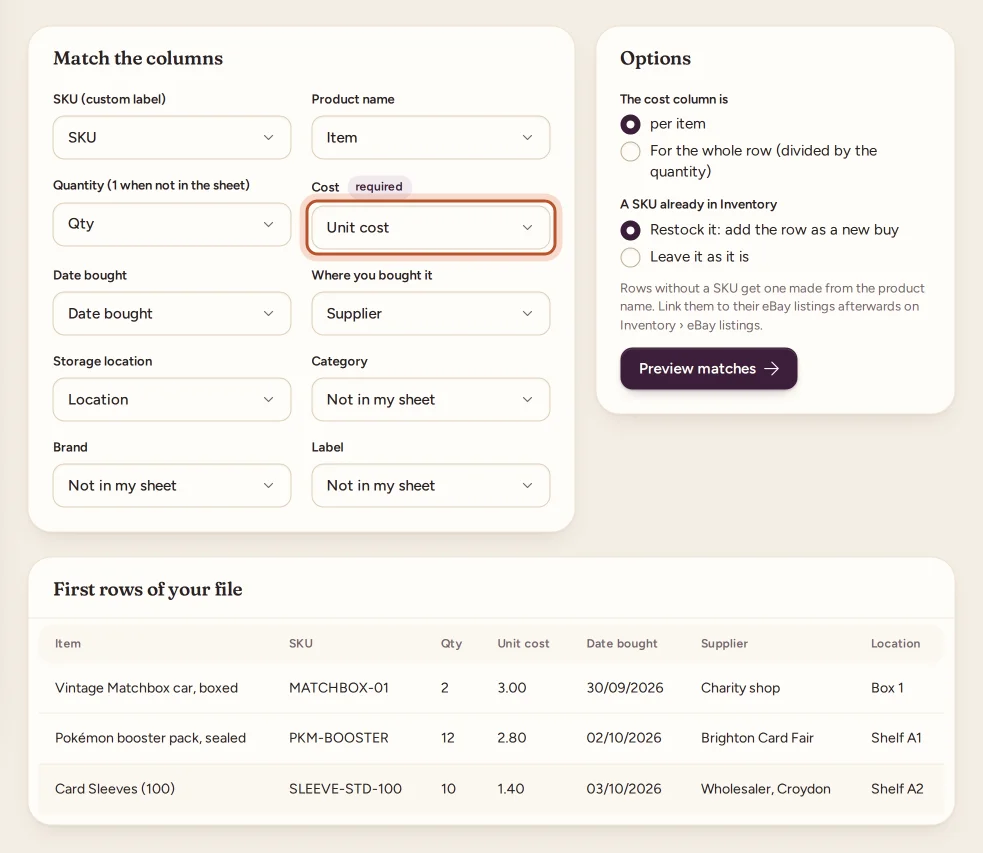
Export or save your list as CSV, Excel or OpenDocument. One row per item, with a heading row. You need at least:
- a product name or a SKU, and
- what it cost (per unit, or for the whole row).
These columns are used too when the sheet has them: Quantity (1 when there is none), Date bought, Where you bought it, Storage location, Category, Brand and Label.
Import your list
- Go to Inventory and click Import stock. In the app, tap Import stock in the Stock tab: it opens the website.
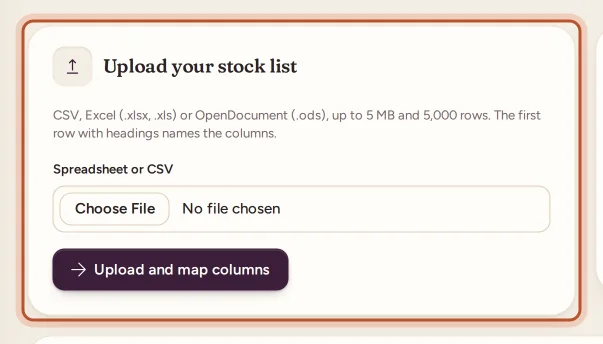
- Choose your file and click Upload.
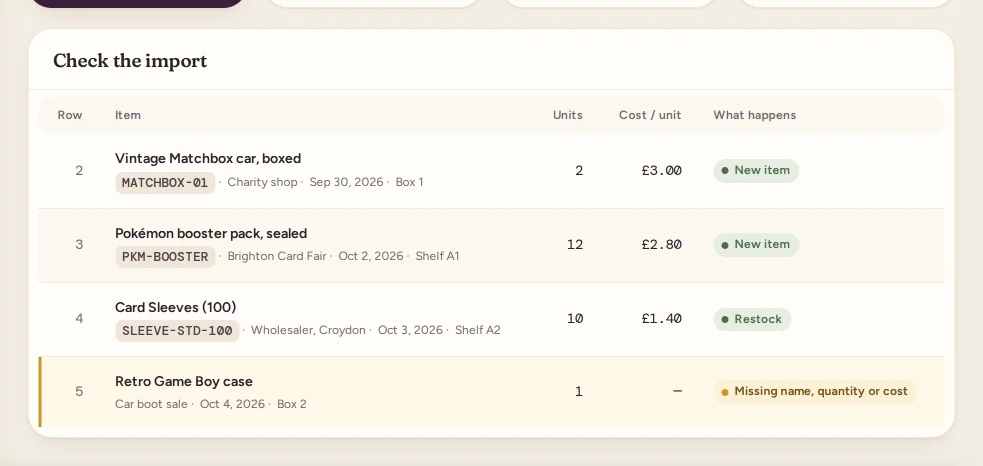
Rows missing a name and SKU, a quantity or a cost are skipped. A row without a SKU gets one made from its product name, marked (made from the name) in the preview.
After the import
- Every item gets a FIFO lot dated with its Date bought, so Sourcing and how long stock takes to sell work from day one.
- Items without SKUs on eBay: open Inventory › eBay listings and link each listing to its item. See Give eBay listings without a SKU their cost.
Undo an import
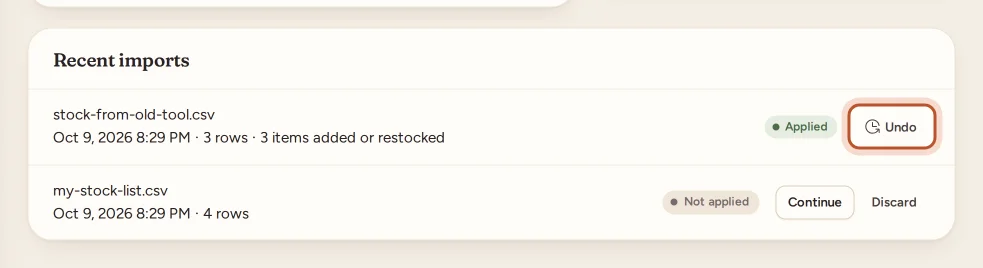
Under Recent imports, click Undo next to the import. It removes the items it added that nothing has happened to since (no sale, restock or change by hand). Restocks of items you already had, and items that changed, are kept; the message says how many.
Questions people ask
Which file types can I upload?
CSV, Excel (.xlsx or .xls) or OpenDocument (.ods), up to 5 MB and 5,000 rows. Only the first sheet is read.
My items have no SKUs. Can I still import them?
Yes. A row without a SKU gets one made from its product name. Link the items to their eBay listings afterwards on Inventory › eBay listings, so their sales find them.
What happens to a SKU that is already in Inventory?
You choose. Restock it, which adds the row as a new buy at its cost, or leave it as it is.
Can I undo an import?
Yes. Undo removes the items the import added, as long as nothing has happened to them since: no sale, restock or change by hand. Everything else stays.
Can I import stock in the app?
The app opens the website for this, as a file is needed. In the Stock tab, tap Import stock.
How is this different from importing item costs?
Importing item costs puts costs on sales you already made. Importing stock adds the items to Inventory, so future sales take their cost from it.
Thanks for telling us.